> ## Documentation Index
> Fetch the complete documentation index at: https://docs.bfl.ml/llms.txt
> Use this file to discover all available pages before exploring further.
# Credits & Billing
> Add credits, track usage, and handle billing for your organization
## Understanding Credits
Credits are managed at the **organization level** and shared across all projects. All team members draw from the same credit pool, while usage is tracked per project so you can see which projects consume the most.
## Adding Credits
Go to [dashboard.bfl.ai](https://dashboard.bfl.ai) and sign in
In your organization sidebar, go to **API → Credits**
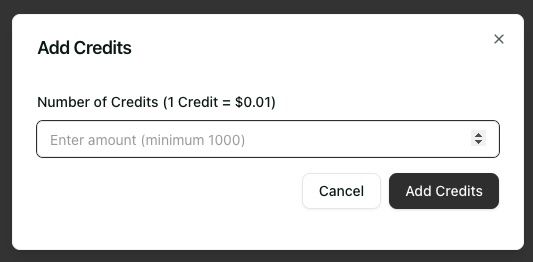
Click **Add Credits** and choose the amount you want to purchase
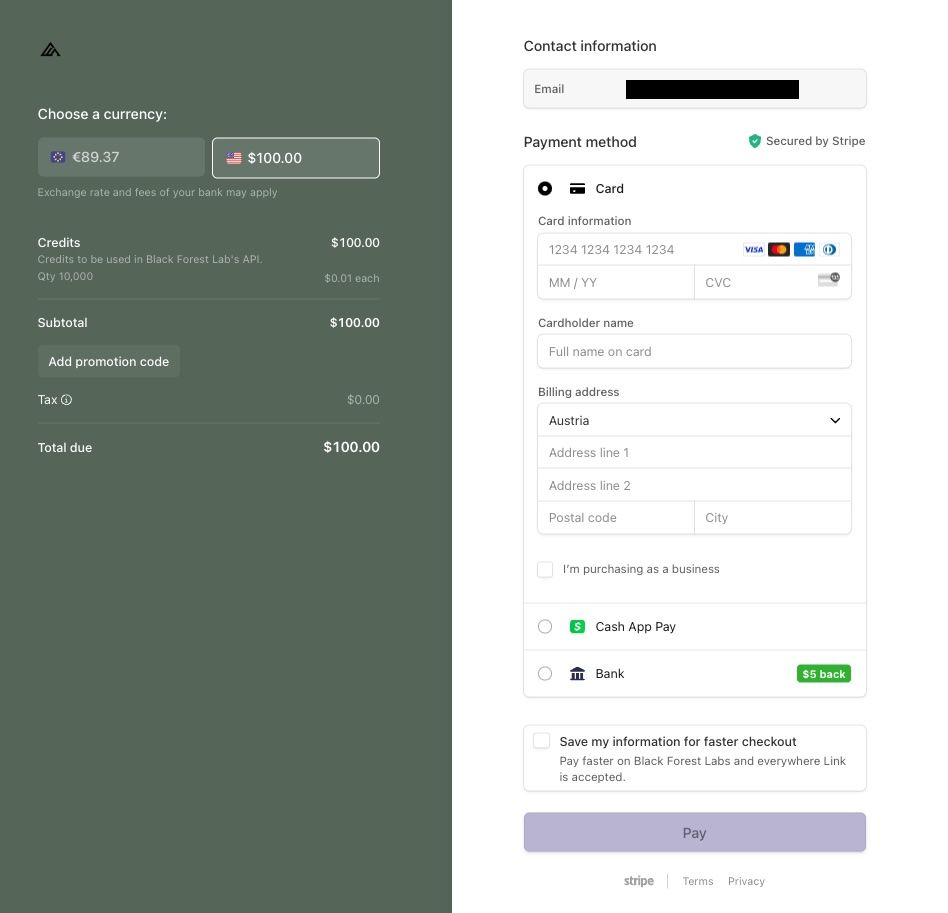
You'll be redirected to Stripe to complete your payment securely. Credits are available immediately.
Check our [Pricing](/quick_start/pricing) page for the latest pricing for each model.
 ## Payment & Billing
We accept all major credit cards through Stripe.
Go to **API → Credits**, find your purchase in **Purchase History**, and click **View Invoice**.
## Payment & Billing
We accept all major credit cards through Stripe.
Go to **API → Credits**, find your purchase in **Purchase History**, and click **View Invoice**.
 ## Track Your Usage
Monitor your API consumption at the organization or project level:
See total consumption across all projects at **API → Usage** in your organization view:
Your current available credits
Total consumption across all projects
Cost breakdown per model
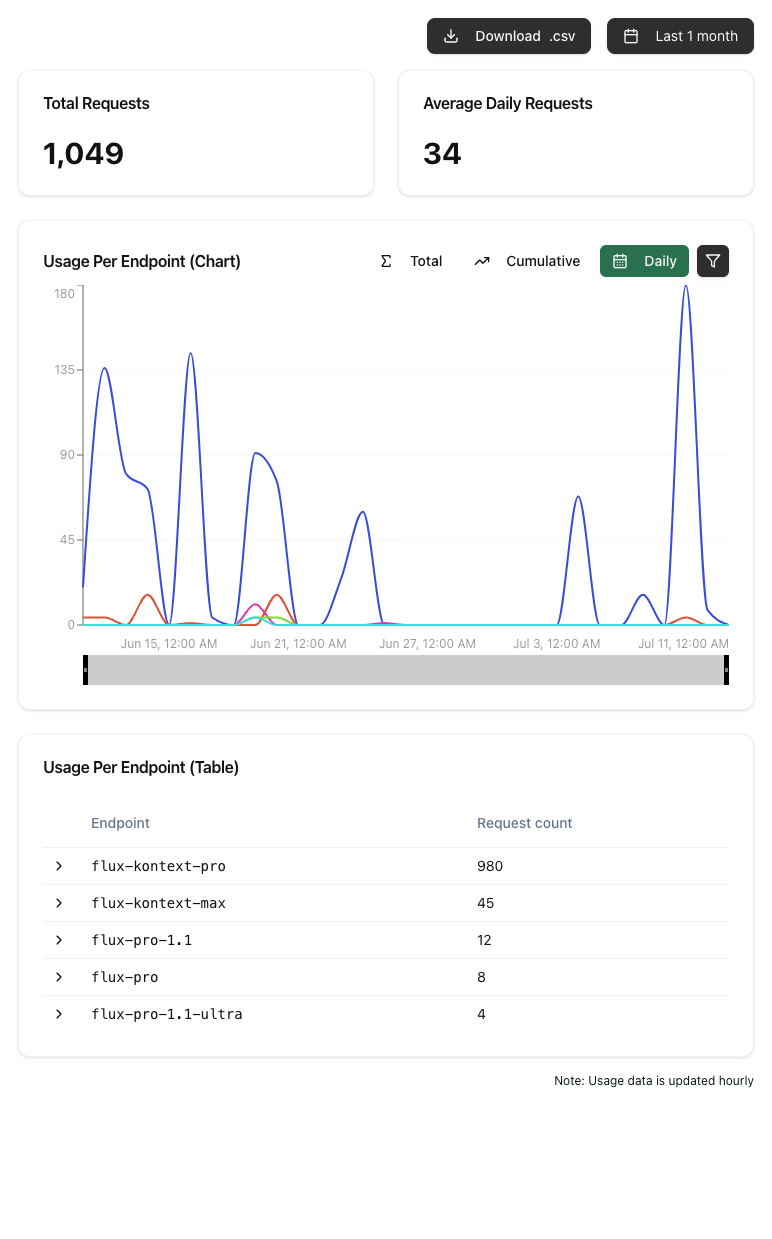
Drill down into individual project usage at **API → Usage** within each project:
Credits used by this specific project
See which endpoints are used most
Daily and hourly usage trends
Cost breakdown per model
## Track Your Usage
Monitor your API consumption at the organization or project level:
See total consumption across all projects at **API → Usage** in your organization view:
Your current available credits
Total consumption across all projects
Cost breakdown per model
Drill down into individual project usage at **API → Usage** within each project:
Credits used by this specific project
See which endpoints are used most
Daily and hourly usage trends
Cost breakdown per model
 ## Transferring Credits
Organization administrators can transfer credits between organizations they manage. This is useful when consolidating credits, moving credits before deleting an organization, or reallocating budget between teams.
To transfer credits, go to your organization settings or contact support.
## Activity Log
Track all billing and credit-related activities in your organization's **Activity Log**: credit purchases, credit transfers, and member changes that affect billing access. This provides a complete audit trail for compliance and accounting.
## Next Steps
Learn more about structuring your workspace
Invite members and manage roles
## Transferring Credits
Organization administrators can transfer credits between organizations they manage. This is useful when consolidating credits, moving credits before deleting an organization, or reallocating budget between teams.
To transfer credits, go to your organization settings or contact support.
## Activity Log
Track all billing and credit-related activities in your organization's **Activity Log**: credit purchases, credit transfers, and member changes that affect billing access. This provides a complete audit trail for compliance and accounting.
## Next Steps
Learn more about structuring your workspace
Invite members and manage roles