> ## Documentation Index
> Fetch the complete documentation index at: https://docs.bfl.ml/llms.txt
> Use this file to discover all available pages before exploring further.

# FLUX Virtual Try-On (VTO)

> Generate virtual try-on results from a person image plus one or more garment references.

export const ImageComparisonSlider = ({beforeImage, afterImage, beforeLabel = "Before", afterLabel = "After", height = "500px", objectFit = "cover", garmentImage, garmentLabel = "Garment reference"}) => {
  const [position, setPosition] = useState(50);
  const dialogRef = useRef(null);
  const openLightbox = () => {
    if (dialogRef.current && typeof dialogRef.current.showModal === "function") {
      dialogRef.current.showModal();
    }
  };
  const closeLightbox = () => {
    if (dialogRef.current && typeof dialogRef.current.close === "function") {
      dialogRef.current.close();
    }
  };
  const getPosition = (e, container) => {
    const rect = container.getBoundingClientRect();
    const clientX = e.touches ? e.touches[0].clientX : e.clientX;
    const x = clientX - rect.left;
    return Math.max(0, Math.min(100, x / rect.width * 100));
  };
  const onPointerDown = e => {
    e.preventDefault();
    e.stopPropagation();
    const container = e.currentTarget;
    setPosition(getPosition(e, container));
    const onMove = ev => {
      ev.preventDefault();
      setPosition(getPosition(ev, container));
    };
    const onUp = () => {
      window.removeEventListener("mousemove", onMove);
      window.removeEventListener("mouseup", onUp);
      window.removeEventListener("touchmove", onMove);
      window.removeEventListener("touchend", onUp);
    };
    window.addEventListener("mousemove", onMove);
    window.addEventListener("mouseup", onUp);
    window.addEventListener("touchmove", onMove, {
      passive: false
    });
    window.addEventListener("touchend", onUp);
  };
  return <div className="not-prose" style={{
    borderRadius: "1rem",
    overflow: "hidden",
    height,
    width: "100%"
  }}>
      <div onMouseDown={onPointerDown} onTouchStart={onPointerDown} onClick={e => {
    e.preventDefault();
    e.stopPropagation();
  }} style={{
    position: "relative",
    width: "100%",
    height,
    overflow: "hidden",
    cursor: "ew-resize",
    userSelect: "none",
    WebkitUserSelect: "none"
  }}>
        {}
        <img src={afterImage} alt={afterLabel} draggable={false} style={{
    position: "absolute",
    top: 0,
    left: 0,
    width: "100%",
    height: "100%",
    objectFit,
    pointerEvents: "none"
  }} />

        {}
        <div style={{
    position: "absolute",
    top: 0,
    left: 0,
    width: "100%",
    height: "100%",
    clipPath: `inset(0 ${100 - position}% 0 0)`
  }}>
          <img src={beforeImage} alt={beforeLabel} draggable={false} style={{
    display: "block",
    width: "100%",
    height: "100%",
    objectFit,
    pointerEvents: "none"
  }} />
        </div>

        {}
        <div style={{
    position: "absolute",
    top: 0,
    left: `${position}%`,
    transform: "translateX(-50%)",
    width: "3px",
    height: "100%",
    background: "rgba(255,255,255,0.85)",
    pointerEvents: "none",
    zIndex: 2
  }} />

        {}
        <div style={{
    position: "absolute",
    top: "50%",
    left: `${position}%`,
    transform: "translate(-50%, -50%)",
    width: "44px",
    height: "44px",
    borderRadius: "50%",
    background: "rgba(255,255,255,0.95)",
    border: "2px solid rgba(0,0,0,0.15)",
    display: "flex",
    alignItems: "center",
    justifyContent: "center",
    gap: "6px",
    zIndex: 3,
    pointerEvents: "none",
    boxShadow: "0 2px 8px rgba(0,0,0,0.3)"
  }}>
          {}
          <svg width="10" height="14" viewBox="0 0 10 14" fill="none" style={{
    marginRight: "-2px"
  }}>
            <path d="M8 1L2 7L8 13" stroke="#333" strokeWidth="2.5" strokeLinecap="round" strokeLinejoin="round" />
          </svg>
          {}
          <svg width="10" height="14" viewBox="0 0 10 14" fill="none" style={{
    marginLeft: "-2px"
  }}>
            <path d="M2 1L8 7L2 13" stroke="#333" strokeWidth="2.5" strokeLinecap="round" strokeLinejoin="round" />
          </svg>
        </div>

        {}
        <div style={{
    position: "absolute",
    top: "12px",
    left: "12px",
    padding: "4px 10px",
    borderRadius: "6px",
    background: "rgba(0,0,0,0.55)",
    backdropFilter: "blur(4px)",
    color: "#fff",
    fontSize: "0.75rem",
    fontWeight: 600,
    letterSpacing: "0.02em",
    pointerEvents: "none",
    zIndex: 4
  }}>
          {beforeLabel}
        </div>
        <div style={{
    position: "absolute",
    top: "12px",
    right: "12px",
    padding: "4px 10px",
    borderRadius: "6px",
    background: "rgba(0,0,0,0.55)",
    backdropFilter: "blur(4px)",
    color: "#fff",
    fontSize: "0.75rem",
    fontWeight: 600,
    letterSpacing: "0.02em",
    pointerEvents: "none",
    zIndex: 4
  }}>
          {afterLabel}
        </div>

        {}
        {garmentImage && <div onMouseDown={e => e.stopPropagation()} onTouchStart={e => e.stopPropagation()} onClick={e => {
    e.preventDefault();
    e.stopPropagation();
    openLightbox();
  }} title={`${garmentLabel} — click to enlarge`} style={{
    position: "absolute",
    bottom: "12px",
    right: "12px",
    height: "140px",
    maxWidth: "40%",
    borderRadius: "8px",
    overflow: "hidden",
    cursor: "zoom-in",
    background: "rgba(255,255,255,0.95)",
    border: "2px solid rgba(255,255,255,0.9)",
    boxShadow: "0 2px 12px rgba(0,0,0,0.45)",
    zIndex: 5,
    display: "flex",
    alignItems: "center",
    justifyContent: "center"
  }}>
            <img src={garmentImage} alt={garmentLabel} draggable={false} style={{
    height: "100%",
    width: "auto",
    objectFit: "contain",
    pointerEvents: "none"
  }} />
          </div>}
      </div>

      {}
      {garmentImage && <dialog ref={dialogRef} onClick={closeLightbox} onClose={closeLightbox} style={{
    padding: 0,
    border: "none",
    background: "transparent",
    maxWidth: "100vw",
    maxHeight: "100vh",
    width: "100vw",
    height: "100vh",
    overflow: "hidden"
  }}>
          <div onClick={closeLightbox} style={{
    width: "100vw",
    height: "100vh",
    background: "rgba(0,0,0,0.88)",
    display: "flex",
    alignItems: "center",
    justifyContent: "center",
    cursor: "zoom-out",
    padding: "40px",
    boxSizing: "border-box"
  }}>
            <img src={garmentImage} alt={garmentLabel} onClick={e => e.stopPropagation()} style={{
    maxWidth: "90vw",
    maxHeight: "90vh",
    objectFit: "contain",
    borderRadius: "8px",
    boxShadow: "0 8px 32px rgba(0,0,0,0.6)",
    cursor: "default"
  }} />
          </div>
        </dialog>}
    </div>;
};

FLUX VTO enables you and your customers to generate virtual try-on for any person on any garment! The endpoint is optimized for low latency, making it ideal for interactive applications like virtual fitting rooms and social media filters.

<Note>
  Try it interactively and for free in our [BFL Shop Demo](https://flux-tools.bfl.ai/virtual-try-on).
</Note>

<Tip>
  Make sure to read the [prompting tips](#prompting-tips) and [reference image guidance](#reference-images) below. They have a significant impact on the output quality.
</Tip>

### Examples

<Tabs>
  <Tab title="Single garment">
    A single garment shown as a packshot. Use this when you have an individual product shot.

    <ImageComparisonSlider beforeImage="https://cdn.sanity.io/images/2gpum2i6/production/04438696b7abc06fe1d44d5bccac35ccabe56385-864x1184.png" afterImage="https://cdn.sanity.io/images/2gpum2i6/production/6bb86b33a573f2ee6d3f6960dd505118f8fe922f-864x1184.png" beforeLabel="Model image (input)" afterLabel="Try-on result (output)" garmentImage="https://cdn.sanity.io/images/2gpum2i6/production/3a3016f7b96138e9d0e8f4b3ebffe98275edf736-1024x1403.png" garmentLabel="Garment reference — olive green bomber jacket" height="600px" objectFit="contain" />

    <Prompt description="The person of image 1, maintaining exactly their face and pose, wearing the olive green bomber jacket with 'Black Forest Labs' branding of image 2." />
  </Tab>

  <Tab title="Multi-garment">
    A complete outfit composed from multiple garments arranged on a single canvas.

    <ImageComparisonSlider beforeImage="https://cdn.sanity.io/images/2gpum2i6/production/97cb0fbde90132a9527d0744e3b38be79d1662e2-864x1200.png" afterImage="https://cdn.sanity.io/images/2gpum2i6/production/4fcc3e1696a31d3095301ef203f049352af0f34a-864x1200.png" beforeLabel="Model image (input)" afterLabel="Try-on result (output)" garmentImage="https://cdn.sanity.io/images/2gpum2i6/production/3474869d74b3c08689e9ac97849dbb1f3c3c8db3-1024x1422.png" garmentLabel="Garment reference — cap, knit sweater, shorts, sandals" height="600px" objectFit="contain" />

    <Prompt description="The person of image 1, maintaining exactly their face and pose, wearing the beige cap with 'Keep FLUXing' text, cream knit sweater with 'Black Forest Labs' text, black logo shorts, and brown suede two-strap slide sandal with black outsole of image 2." />
  </Tab>

  <Tab title="Model to Model">
    The garment reference is shown worn by a different model. Useful when you only have on-model imagery available.

    <ImageComparisonSlider beforeImage="https://cdn.sanity.io/images/2gpum2i6/production/9b98dcc3fafbfa18f27e5db5ec19b46a6239fc46-864x1200.webp" afterImage="https://cdn.sanity.io/images/2gpum2i6/production/7514b1711dc64be61d02b8f57c05f0dfd5d17863-864x1200.jpg" beforeLabel="Model image (input)" afterLabel="Try-on result (output)" garmentImage="https://cdn.sanity.io/images/2gpum2i6/production/0aa256bfae7015f681cf0a5b4716de19c1a3c1be-1024x1422.jpg" garmentLabel="Garment reference — black sleeveless shirt (on-model)" height="600px" objectFit="contain" />

    <Prompt description="The person of image 1, maintaining exactly their face and pose, wearing the black sleeveless shirt of image 2." />
  </Tab>
</Tabs>

## Prompting tips

* Core prompt formula: **`The person of image 1, maintaining exactly their face and pose, wearing the {YOUR GARMENT DESCRIPTIONS} of image 2.`**
* A good default is even a static prompt like  **`The person of image 1, maintaining exactly their face and pose, wearing the garments of image 2.`**. But to get higher quality results, we recommend to add a concise description of the garments. Especially for complex garments, a detailed description can significantly improve the outcome.\
  You can for instance specify the fit and category of the garment like for example:
  * *the oversized tee*
  * the cap with *Keep FLUXing* text
  * *the 7/8 length pants*.
* When using another model shot as garment reference, only **describe what should be tried on from that image** and don't specify in the prompt what should be kept from the model image.\
  For instance, if the garment reference image also shows a model wearing pants, but you only want to try on the top, your prompt could be: **`The person of image 1, maintaining exactly their face and pose, wearing the green jacket of image 2.`**

## Reference images

### General guidance

* Input images (both **model** and **garment**) up to **2 Megapixels** are used as-is. Larger inputs are automatically downscaled to a **\~1 Megapixels** target while preserving aspect ratio.
* For best results and latency, keep the **model image** and the **garment image** at around 1 Megapixels.
* Some artifacts from existing clothing may be retained in the output. If you are consistently seeing this, you can try **preprocessing the model image to get a more neutral base for the try-on**. A neutral base could mean just wearing tight-fitting, plain clothing.
* For the garment reference, clean, well-lit images with a clear view of the garment details work best. Both packshot and on-model references are supported, but **packshot references with a plain background tend to produce the best results**.

### Designing the garment image

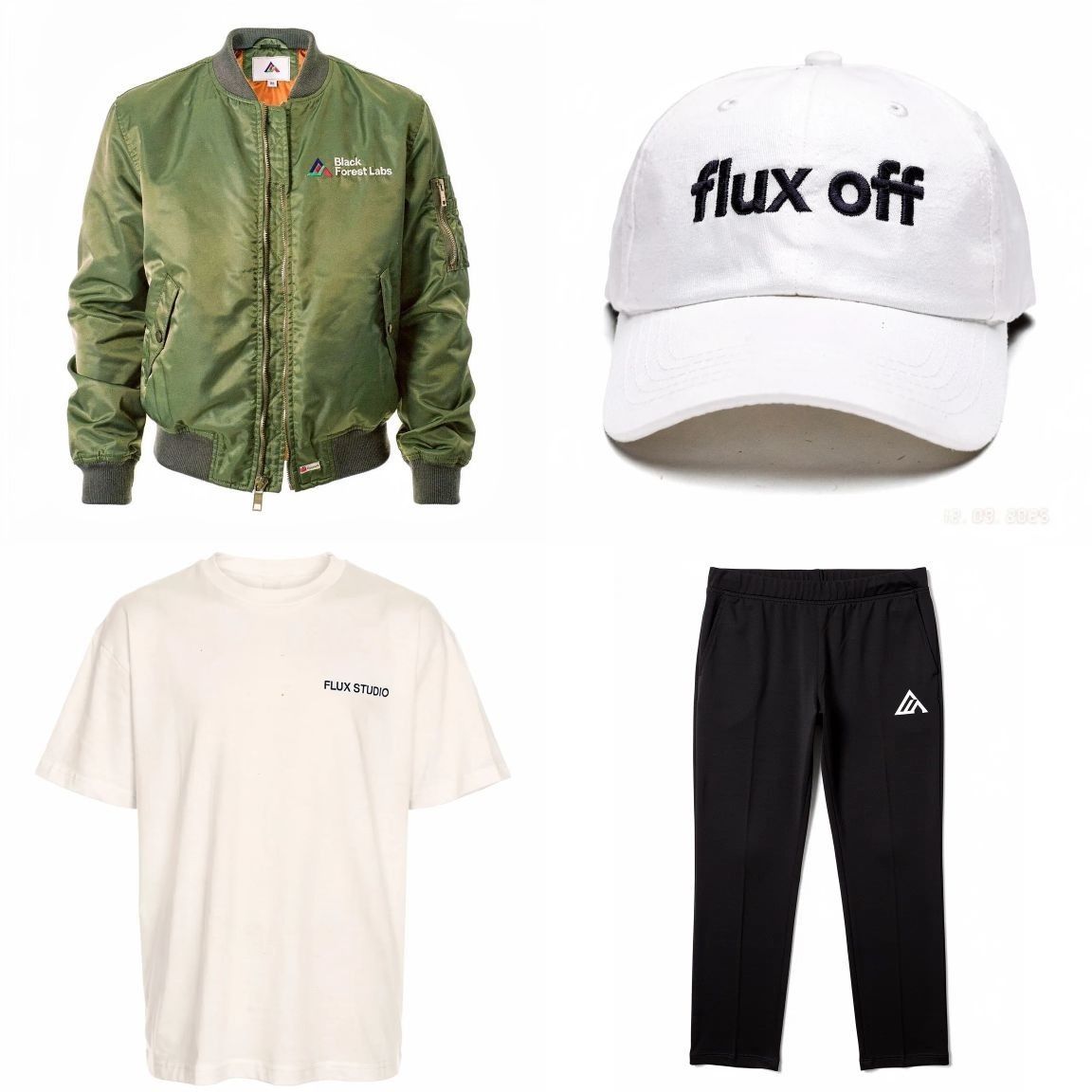
If you want to generate an image with more than one garment, merge them into a single canvas first. This reduces extra file handling overhead and optimizes for latency.

<Frame caption="Multiple garments merged into a single canvas before being sent as the garment reference">
  <img src="https://cdn.sanity.io/images/2gpum2i6/production/102a07fbda2b938c53cf44b89fa9b4bb1d83279c-1152x1152.jpg" alt="Four garments (jacket, cap, t-shirt, pants) arranged in a 2x2 grid as a single garment reference image" />
</Frame>

## Endpoint

Submit a try-on job:

```bash theme={null}
curl -X POST https://api.bfl.ai/v1/flux-tools/vto-v1 \
  -H "x-key: $BFL_API_KEY"
```

Poll for the result:

```bash theme={null}
curl https://api.bfl.ai/v1/get_result?id=<TASK_ID> \
  -H "x-key: $BFL_API_KEY"
```

### Regional endpoints

To reduce latency, you can pin requests to a specific region by swapping the host:

* `https://api.eu.bfl.ai/v1/flux-tools/vto-v1` — Europe
* `https://api.us.bfl.ai/v1/flux-tools/vto-v1` — US

Pick the region closest to your traffic, this can make a **difference of up to 1 second in latency**. The `polling_url` returned in the submit response will match the region you submitted to — always poll the URL returned in the response rather than rewriting the host.

Follow the [regional endpoints guide](https://docs.bfl.ai/api_integration/integration_guidelines#regional-endpoints) for more information on the regional endpoints and how to use them.

## Quick start

The API uses an asynchronous workflow:

<Steps>
  <Step title="Submit a VTO request">
    POST a person image and one or more garment images, together with a styling prompt, to the model endpoint.
  </Step>

  <Step title="Poll for the result">
    Use the returned `polling_url` to check status until the image is ready.
  </Step>
</Steps>

<CodeGroup>
  ```python Python theme={null}
  #!/usr/bin/env python3
  import base64
  import os
  import time
  import requests

  API_KEY = os.environ["BFL_API_KEY"]
  BASE = "https://api.bfl.ai"
  HEADERS = {"accept": "application/json", "x-key": API_KEY, "Content-Type": "application/json"}

  PROMPT = "The person of image 1, maintaining exactly their face and pose, wearing the white t-shirt of image 2."
  PERSON_PATH = "/path/to/person.png"
  GARMENT_PATH = "/path/to/garment_top.png"

  with open(PERSON_PATH, "rb") as f:
      person_b64 = base64.b64encode(f.read()).decode()

  with open(GARMENT_PATH, "rb") as f:
      garment_b64 = base64.b64encode(f.read()).decode()

  payload = {
      "prompt": PROMPT,
      "person": person_b64,
      "garment": garment_b64,
      "output_format": "webp",
  }

  submit = requests.post(f"{BASE}/v1/flux-tools/vto-v1", headers=HEADERS, json=payload)
  submit.raise_for_status()
  meta = submit.json()

  task_id = meta["id"]
  poll_url = meta.get("polling_url", f"{BASE}/v1/get_result?id={task_id}")

  while True:
      r = requests.get(poll_url, headers={"accept": "application/json", "x-key": API_KEY})
      r.raise_for_status()
      result = r.json()

      status = result.get("status")
      if status == "Ready":
          print("Result URL:", result["result"]["sample"])
          break
      if status in {"Error", "Request Moderated", "Content Moderated", "Task not found"}:
          raise RuntimeError(f"VTO failed with status: {status} | payload: {result}")

      time.sleep(1)
  ```

  ```bash cURL theme={null}
  PERSON_B64="$(base64 < /path/to/person.png | tr -d '\n')"
  GARMENT_B64="$(base64 < /path/to/garment_top.png | tr -d '\n')"

  jq -n \
    --arg person "$PERSON_B64" \
    --arg garment "$GARMENT_B64" \
    '{
      prompt: "The person of image 1, maintaining exactly their face and pose, wearing the white t-shirt of image 2.",
      person: $person,
      garment: $garment,
      output_format: "webp"
    }' > /tmp/vto_request.json

  curl -sS -X POST "https://api.bfl.ai/v1/flux-tools/vto-v1" \
    -H "accept: application/json" \
    -H "Content-Type: application/json" \
    -H "x-key: $BFL_API_KEY" \
    --data-binary @/tmp/vto_request.json

  # Poll for the result
  curl -sS "https://api.bfl.ai/v1/get_result?id=YOUR_TASK_ID" \
    -H "accept: application/json" \
    -H "x-key: $BFL_API_KEY"
  ```
</CodeGroup>

## Request parameters

Use `person` + `garment` as the minimum payload.

| Parameter          | Type    | Required | Description                                                        |
| ------------------ | ------- | -------- | ------------------------------------------------------------------ |
| `prompt`           | string  | Yes      | Natural-language styling instruction                               |
| `person`           | string  | Yes      | Person image — URL or base64 (mapped to `input_image`)             |
| `garment`          | string  | Yes      | Garment reference — URL or base64 (mapped to `input_image_2`)      |
| `seed`             | integer | No       | For reproducibility                                                |
| `safety_tolerance` | integer | No       | `0–5`, defaults to `2`. Moderation strictness for input and output |
| `output_format`    | string  | No       | `jpeg` (default), `png`, `webp`                                    |
| `webhook_url`      | URL     | No       | Async callback                                                     |
| `webhook_secret`   | string  | No       | Signature secret                                                   |

## Response format

### Initial response

```json theme={null}
{
  "id": "xxxxxxxx-xxxx-xxxx-xxxx-xxxxxxxxxxxx",
  "polling_url": "https://api.bfl.ai/v1/get_result?id=xxxxxxxx-xxxx-xxxx-xxxx-xxxxxxxxxxxx"
}
```

Always poll the URL returned in the response.

### Polling response (success)

```json theme={null}
{
  "id": "xxxxxxxx-xxxx-xxxx-xxxx-xxxxxxxxxxxx",
  "status": "Ready",
  "result": {
    "sample": "https://delivery.bfl.ai/..."
  }
}
```

When `status` is `"Ready"`, use `result.sample`.

<Warning>
  Signed delivery URLs are only valid for **10 minutes**. Retrieve your result within this timeframe.
</Warning>

For the full list of HTTP status codes and polling response types returned by the API, see the [Errors reference](/api_integration/errors).