> ## Documentation Index
> Fetch the complete documentation index at: https://docs.bfl.ml/llms.txt
> Use this file to discover all available pages before exploring further.
# Image Editing
> FLUX.1 Kontext image editing model. For new projects, we recommend FLUX.2 with multi-reference support and up to 4MP output.
**Looking for image editing? We recommend FLUX.2.** It offers improved editing quality, multi-reference support (up to 10 images), better text editing, and output up to 4MP. [Use FLUX.2 for editing →](/flux_2/flux2_image_editing)
**FLUX.1 Kontext \[pro]** is a previous-generation model that edits images using simple text prompts. No complex workflows or fine-tuning needed.
**Try it live** - Test image editing in our [playground](https://playground.bfl.ai) by uploading an image and typing what you want to change.
## Examples of Editing
### Basic Object Modifications
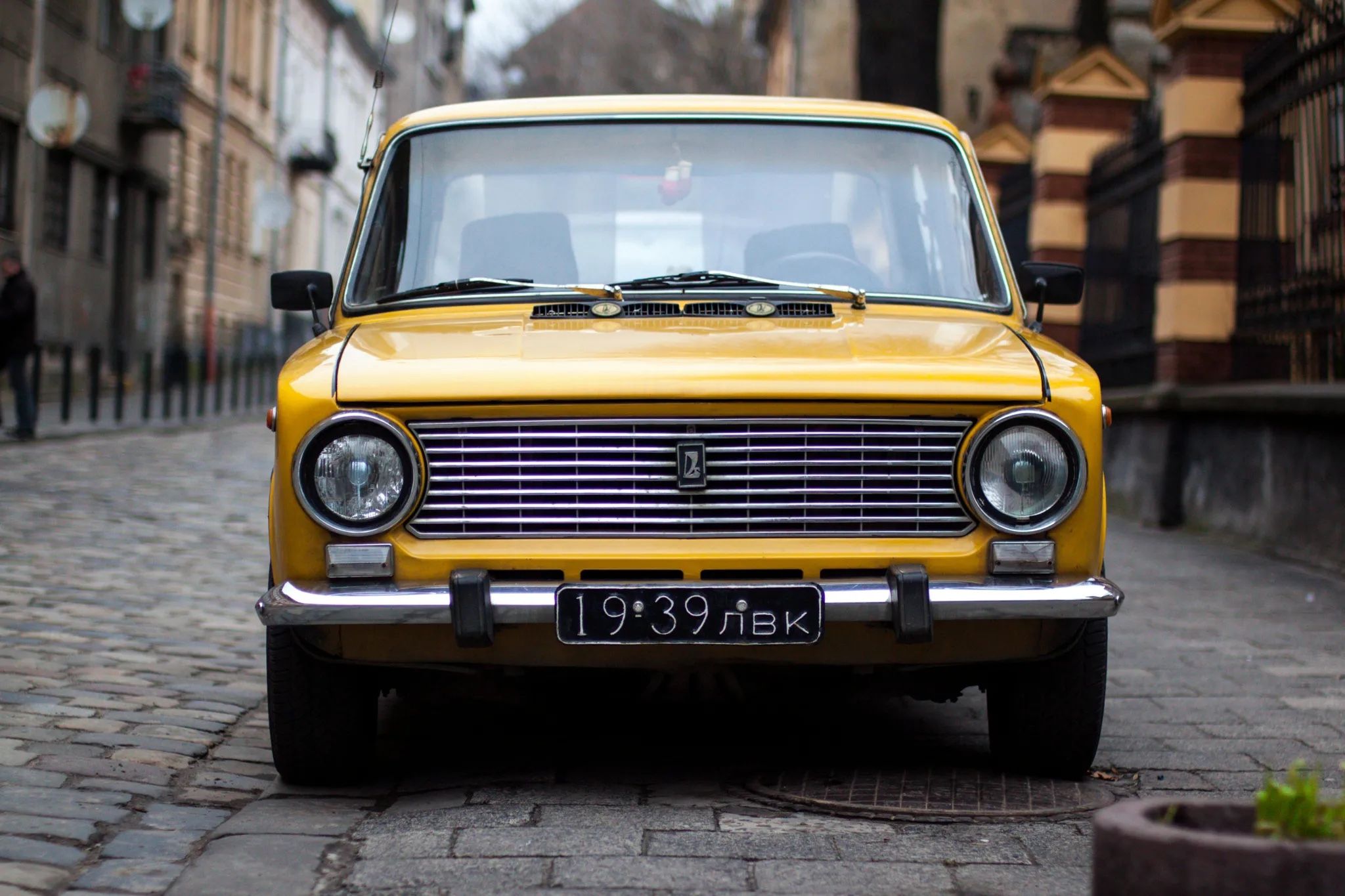
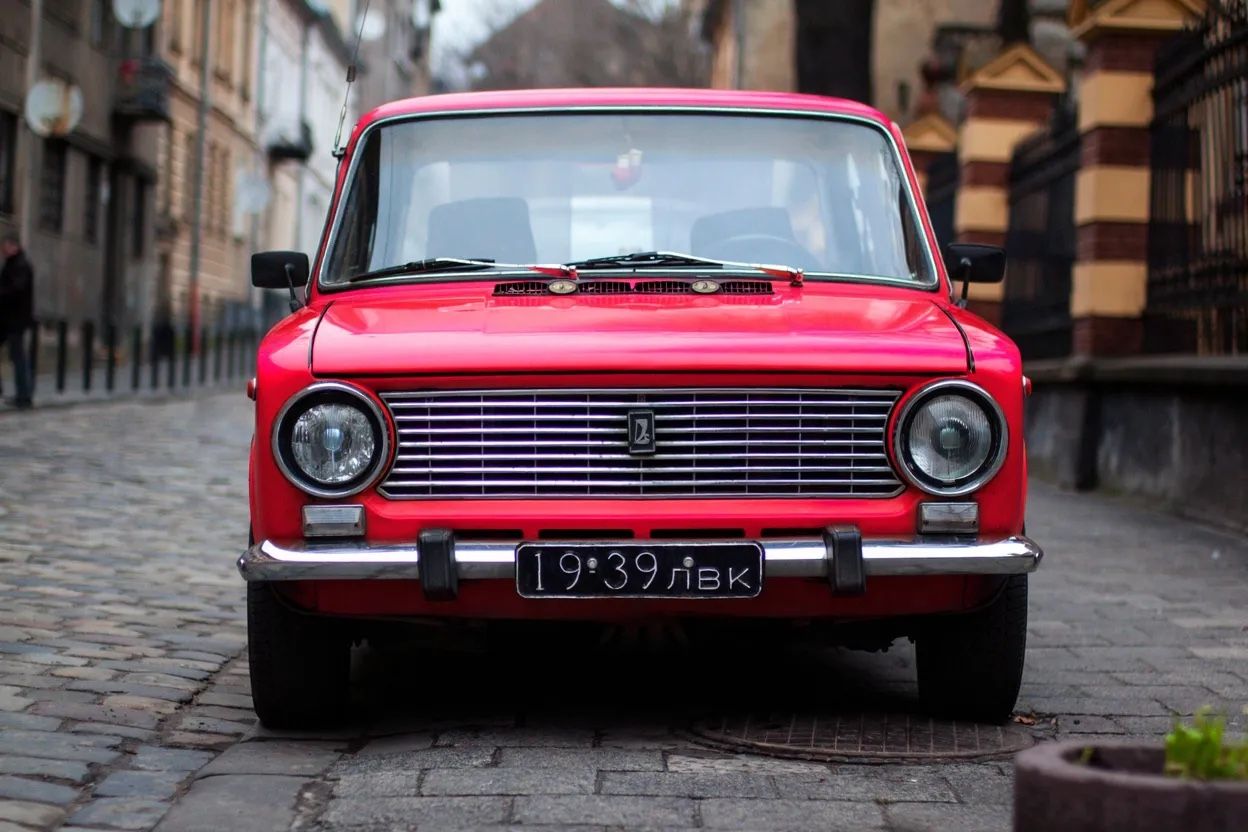
FLUX.1 Kontext is really good at straightforward object modification, for example if we want to change the color of an object, we can prompt it.
For example: `Change the car color to red`
 ### Iterative Editing
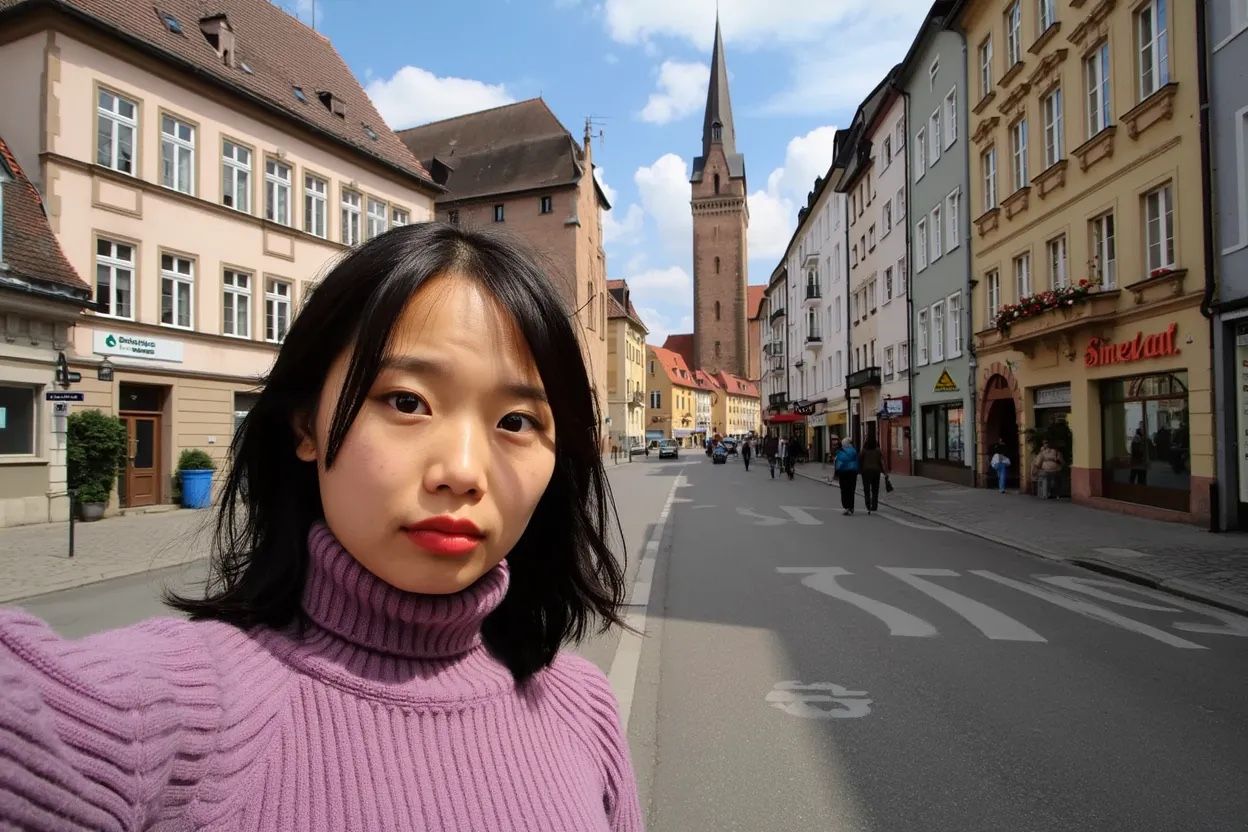
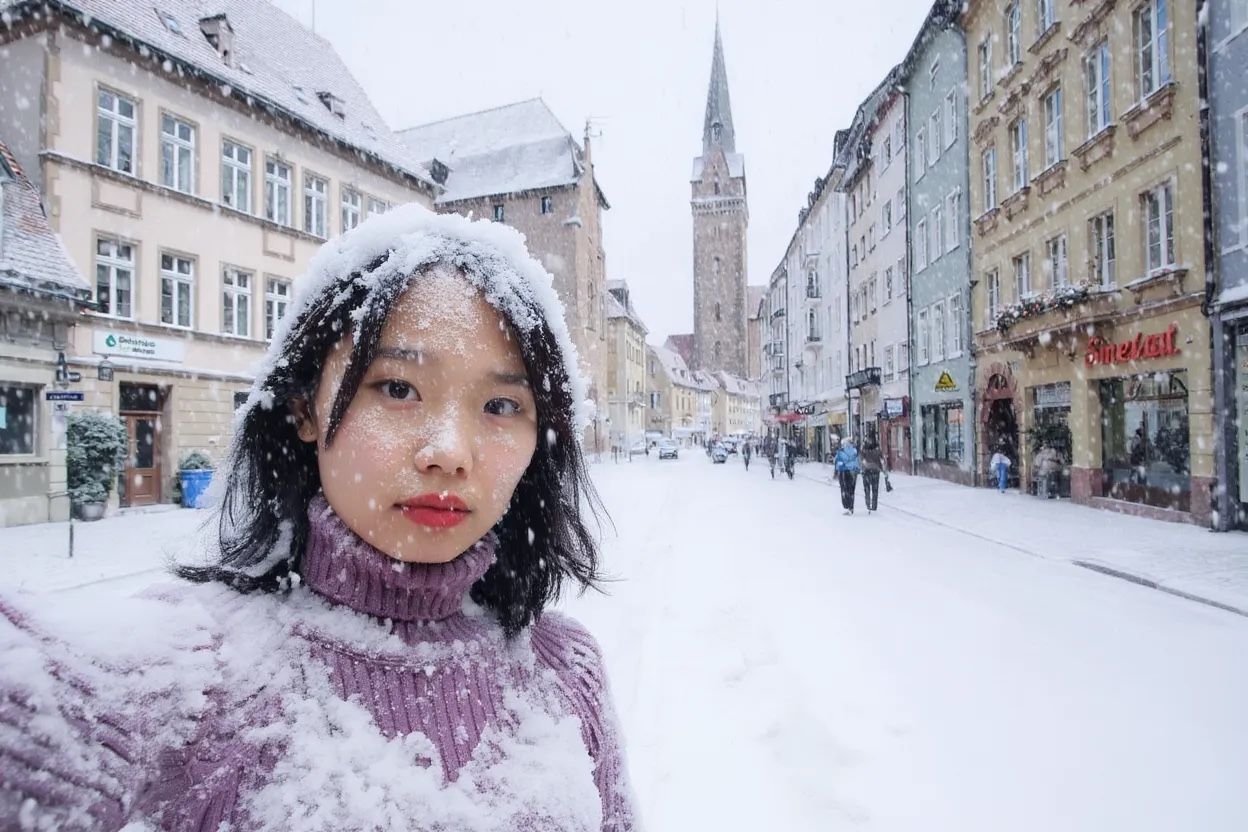
FLUX.1 Kontext excels at character consistency, even after multiple edits. Starting from a reference picture, we can see that the character is consistent throughout the sequence. The prompts used for each edit are shown in the captions below each image.
### Iterative Editing
FLUX.1 Kontext excels at character consistency, even after multiple edits. Starting from a reference picture, we can see that the character is consistent throughout the sequence. The prompts used for each edit are shown in the captions below each image.


 ### Text Editing
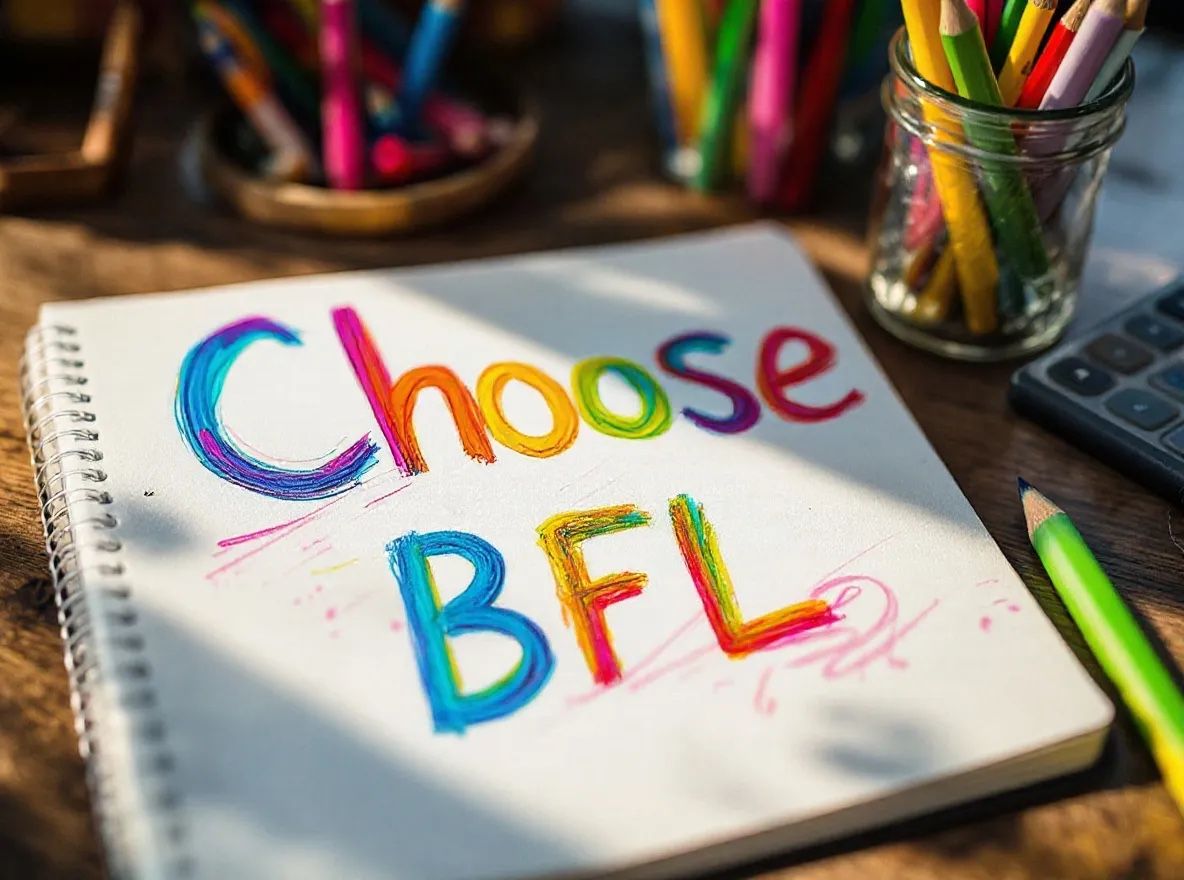
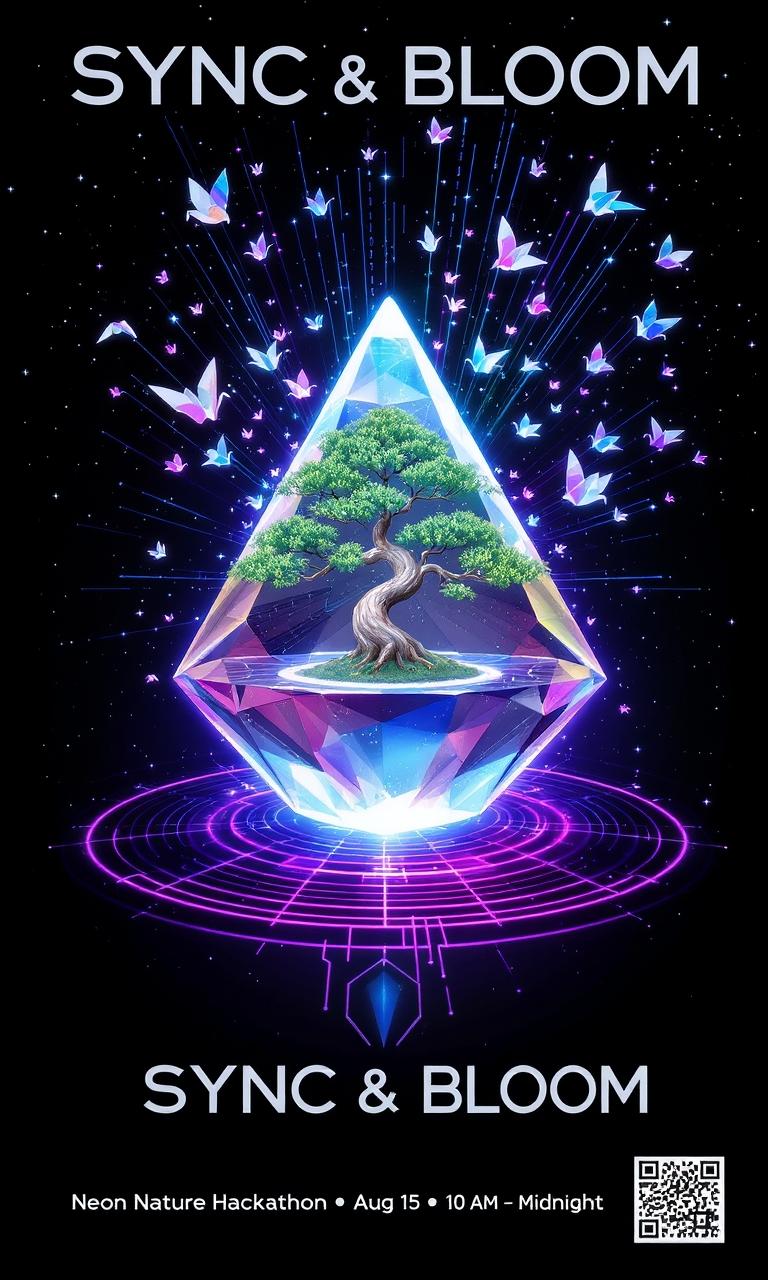
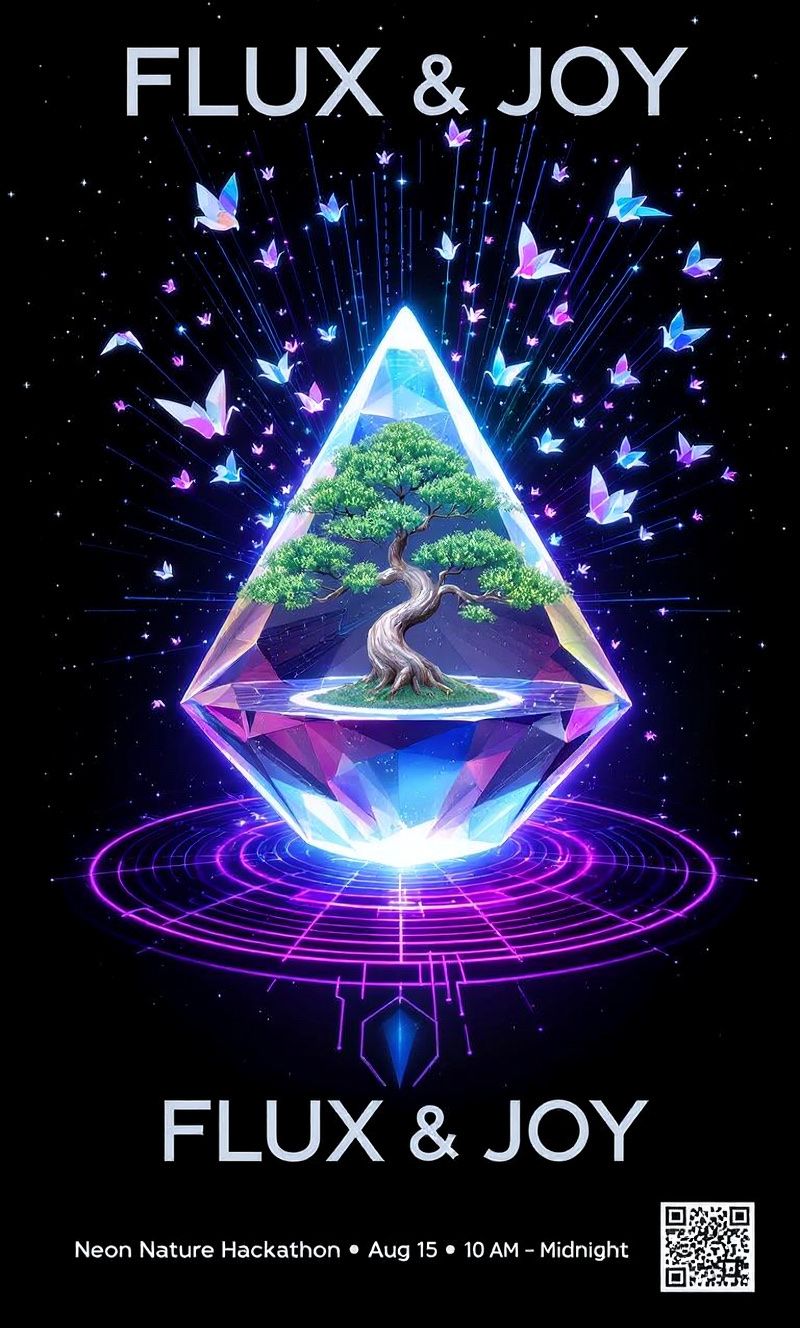
FLUX.1 Kontext can directly edit text that appears in images, making it easy to update signs, posters, labels, and more without recreating the entire image.
The most effective way to edit text is using quotation marks around the specific text you want to change:
**Prompt Structure**: `Replace '[original text]' with '[new text]'`
**Example -** We can see below where we have an input image with "Choose joy" written, and we replace "joy" with "BFL" - note the upper case format for BFL.
### Text Editing
FLUX.1 Kontext can directly edit text that appears in images, making it easy to update signs, posters, labels, and more without recreating the entire image.
The most effective way to edit text is using quotation marks around the specific text you want to change:
**Prompt Structure**: `Replace '[original text]' with '[new text]'`
**Example -** We can see below where we have an input image with "Choose joy" written, and we replace "joy" with "BFL" - note the upper case format for BFL.

 ### Edit Images with Annotation Boxes
FLUX.1 Kontext allows using bright colored boxes as annotations for targeted local editing. Local annotated edits specifically work well for text edits that require text repositioning and resizing.
Annotation boxes make referencing specific parts of the image in your prompt even more seamless.
### Edit Images with Annotation Boxes
FLUX.1 Kontext allows using bright colored boxes as annotations for targeted local editing. Local annotated edits specifically work well for text edits that require text repositioning and resizing.
Annotation boxes make referencing specific parts of the image in your prompt even more seamless.

 FLUX Kontext \[pro] automatically acknowledges annotation boxes when included as part of `input_image`. In the output sample, annotation boxes are removed automatically.
## Using FLUX.1 Kontext API for Image Editing
This **requires both** a **text prompt** and **an input image** to work, with the input image serving as the base that will be edited according to your prompt.
To use Kontext for image editing, you'll make a request to the `/flux-kontext-pro` endpoint:
### Create Request
```bash create_request.sh theme={null}
# Install `curl` and `jq`, then run:
request=$(curl -X POST \
'https://api.bfl.ai/v1/flux-kontext-pro' \
-H 'accept: application/json' \
-H "x-key: ${BFL_API_KEY}" \
-H 'Content-Type: application/json' \
-d '{
"prompt": "",
"input_image": "",
}')
echo $request
request_id=$(echo $request | jq -r .id)
polling_url=$(echo $request | jq -r .polling_url)
```
```python create_request.py theme={null}
# Install `requests` (e.g. `pip install requests`)
# and `Pillow` (e.g. `pip install Pillow`)
import os
import requests
import base64
from PIL import Image
from io import BytesIO
# Load and encode your image
# Replace "" with the path to your image file
image = Image.open("")
buffered = BytesIO()
image.save(buffered, format="JPEG") # Or "PNG" if your image is PNG
img_str = base64.b64encode(buffered.getvalue()).decode()
request = requests.post(
'https://api.bfl.ai/v1/flux-kontext-pro',
headers={
'accept': 'application/json',
'x-key': os.environ.get("BFL_API_KEY"),
'Content-Type': 'application/json',
},
json={
'prompt': '',
'input_image': img_str,
},
).json()
print(request)
request_id = request["id"]
polling_url = request["polling_url"] # Use this URL for polling
```
A successful response will be a JSON object containing the request's `id`, that will be used to retrieve the actual result.
### Poll for Result
After submitting a request, you need to poll using the returned `polling_url` to retrieve the output when ready.
```bash poll_result.sh theme={null}
while true; do
sleep 0.5
result=$(curl -s -X 'GET' \
"${polling_url}" \
-H 'accept: application/json' \
-H "x-key: ${BFL_API_KEY}")
status=$(echo $result | jq -r .status)
echo "Status: $status"
if [ "$status" == "Ready" ]; then
echo "Result: $(echo $result | jq -r .result.sample)"
break
elif [ "$status" == "Error" ] || [ "$status" == "Failed" ]; then
echo "Generation failed: $result"
break
fi
done
```
```python poll_result.py theme={null}
# This assumes that the `polling_url` variable is set.
import time
import os
import requests
while True:
time.sleep(0.5)
result = requests.get(
polling_url,
headers={
'accept': 'application/json',
'x-key': os.environ.get("BFL_API_KEY"),
},
).json()
if result['status'] == 'Ready':
print(f"Image ready: {result['result']['sample']}")
break
elif result['status'] in ['Error', 'Failed']:
print(f"Generation failed: {result}")
break
```
A successful response will be a JSON object containing the result, and `result['sample']` is a signed URL for retrieval.
Our signed URLs are only valid for 10 minutes. Please retrieve your result within this timeframe.
### FLUX.1 Kontext Image Editing Parameters
For image editing, FLUX.1 Kontext tries to match the input image dimensions as closely as possible (rounded to multiples of 32). Use `aspect_ratio` to override this behavior if needed.
* **Supported Range**: Aspect ratios can range from 3:7 (portrait) to 7:3 (landscape).
List of FLUX.1 Kontext parameters for image editing via the `/flux-kontext-pro` endpoint:
| Parameter | Type | Default | Description | Required |
| ------------------- | -------------- | -------- | -------------------------------------------------------------------------------------------------- | -------- |
| `prompt` | string | | Text description of the edit to be applied. | **Yes** |
| `input_image` | string | | Base64 encoded image or URL of image to use as reference. Supports up to 20MB or 20 megapixels. | **Yes** |
| `aspect_ratio` | string / null | `"1:1"` | Desired aspect ratio (e.g., "16:9"). All outputs are \~1MP total. Supports ratios from 3:7 to 7:3. | No |
| `seed` | integer / null | `null` | Seed for reproducibility. If `null` or omitted, a random seed is used. Accepts any integer. | No |
| `prompt_upsampling` | boolean | `false` | If true, performs upsampling on the prompt | No |
| `safety_tolerance` | integer | `2` | Moderation level for inputs and outputs. Value ranges from 0 (most strict) to 6 (more permissive). | No |
| `output_format` | string | `"jpeg"` | Desired format of the output image. Can be "jpeg" or "png". | No |
| `webhook_url` | string / null | `null` | URL for asynchronous completion notification. Must be a valid HTTP/HTTPS URL. | No |
| `webhook_secret` | string / null | `null` | Secret for webhook signature verification, sent in the `X-Webhook-Secret` header. | No |
FLUX Kontext \[pro] automatically acknowledges annotation boxes when included as part of `input_image`. In the output sample, annotation boxes are removed automatically.
## Using FLUX.1 Kontext API for Image Editing
This **requires both** a **text prompt** and **an input image** to work, with the input image serving as the base that will be edited according to your prompt.
To use Kontext for image editing, you'll make a request to the `/flux-kontext-pro` endpoint:
### Create Request
```bash create_request.sh theme={null}
# Install `curl` and `jq`, then run:
request=$(curl -X POST \
'https://api.bfl.ai/v1/flux-kontext-pro' \
-H 'accept: application/json' \
-H "x-key: ${BFL_API_KEY}" \
-H 'Content-Type: application/json' \
-d '{
"prompt": "",
"input_image": "",
}')
echo $request
request_id=$(echo $request | jq -r .id)
polling_url=$(echo $request | jq -r .polling_url)
```
```python create_request.py theme={null}
# Install `requests` (e.g. `pip install requests`)
# and `Pillow` (e.g. `pip install Pillow`)
import os
import requests
import base64
from PIL import Image
from io import BytesIO
# Load and encode your image
# Replace "" with the path to your image file
image = Image.open("")
buffered = BytesIO()
image.save(buffered, format="JPEG") # Or "PNG" if your image is PNG
img_str = base64.b64encode(buffered.getvalue()).decode()
request = requests.post(
'https://api.bfl.ai/v1/flux-kontext-pro',
headers={
'accept': 'application/json',
'x-key': os.environ.get("BFL_API_KEY"),
'Content-Type': 'application/json',
},
json={
'prompt': '',
'input_image': img_str,
},
).json()
print(request)
request_id = request["id"]
polling_url = request["polling_url"] # Use this URL for polling
```
A successful response will be a JSON object containing the request's `id`, that will be used to retrieve the actual result.
### Poll for Result
After submitting a request, you need to poll using the returned `polling_url` to retrieve the output when ready.
```bash poll_result.sh theme={null}
while true; do
sleep 0.5
result=$(curl -s -X 'GET' \
"${polling_url}" \
-H 'accept: application/json' \
-H "x-key: ${BFL_API_KEY}")
status=$(echo $result | jq -r .status)
echo "Status: $status"
if [ "$status" == "Ready" ]; then
echo "Result: $(echo $result | jq -r .result.sample)"
break
elif [ "$status" == "Error" ] || [ "$status" == "Failed" ]; then
echo "Generation failed: $result"
break
fi
done
```
```python poll_result.py theme={null}
# This assumes that the `polling_url` variable is set.
import time
import os
import requests
while True:
time.sleep(0.5)
result = requests.get(
polling_url,
headers={
'accept': 'application/json',
'x-key': os.environ.get("BFL_API_KEY"),
},
).json()
if result['status'] == 'Ready':
print(f"Image ready: {result['result']['sample']}")
break
elif result['status'] in ['Error', 'Failed']:
print(f"Generation failed: {result}")
break
```
A successful response will be a JSON object containing the result, and `result['sample']` is a signed URL for retrieval.
Our signed URLs are only valid for 10 minutes. Please retrieve your result within this timeframe.
### FLUX.1 Kontext Image Editing Parameters
For image editing, FLUX.1 Kontext tries to match the input image dimensions as closely as possible (rounded to multiples of 32). Use `aspect_ratio` to override this behavior if needed.
* **Supported Range**: Aspect ratios can range from 3:7 (portrait) to 7:3 (landscape).
List of FLUX.1 Kontext parameters for image editing via the `/flux-kontext-pro` endpoint:
| Parameter | Type | Default | Description | Required |
| ------------------- | -------------- | -------- | -------------------------------------------------------------------------------------------------- | -------- |
| `prompt` | string | | Text description of the edit to be applied. | **Yes** |
| `input_image` | string | | Base64 encoded image or URL of image to use as reference. Supports up to 20MB or 20 megapixels. | **Yes** |
| `aspect_ratio` | string / null | `"1:1"` | Desired aspect ratio (e.g., "16:9"). All outputs are \~1MP total. Supports ratios from 3:7 to 7:3. | No |
| `seed` | integer / null | `null` | Seed for reproducibility. If `null` or omitted, a random seed is used. Accepts any integer. | No |
| `prompt_upsampling` | boolean | `false` | If true, performs upsampling on the prompt | No |
| `safety_tolerance` | integer | `2` | Moderation level for inputs and outputs. Value ranges from 0 (most strict) to 6 (more permissive). | No |
| `output_format` | string | `"jpeg"` | Desired format of the output image. Can be "jpeg" or "png". | No |
| `webhook_url` | string / null | `null` | URL for asynchronous completion notification. Must be a valid HTTP/HTTPS URL. | No |
| `webhook_secret` | string / null | `null` | Secret for webhook signature verification, sent in the `X-Webhook-Secret` header. | No |