

FLUX 3 Image Klein
Train your first LoRA
A LoRA is a small add-on that steers an image model toward a specific style. You’re going to train one that makes FLUX 3 Image Klein draw like a Halloween postcard from the early 1900s. Swap in your own images, and the same steps work for any style.
What you’ll make
Asking the base model (FLUX 3 Image Klein) for “an old Halloween greeting card” already does great. It just doesn’t have the vintage postcard style from old movies. The trained LoRA is much closer to that look:What you need
- A GPU with at least 24 GB of VRAM.
- AI Toolkit by ostris.
- Access to FLUX 3 Image Klein Base on Hugging Face. Once you have access, log in with
hf auth login. - A dataset you want to train the model on. Here’s the one this guide uses.
1. Gather your dataset
This dataset has 65 Halloween postcards, some from The Public Domain Review and some from Wikimedia Commons. Ametadata.csv lists each image’s source and license, which is standard practice if you plan to share your LoRA.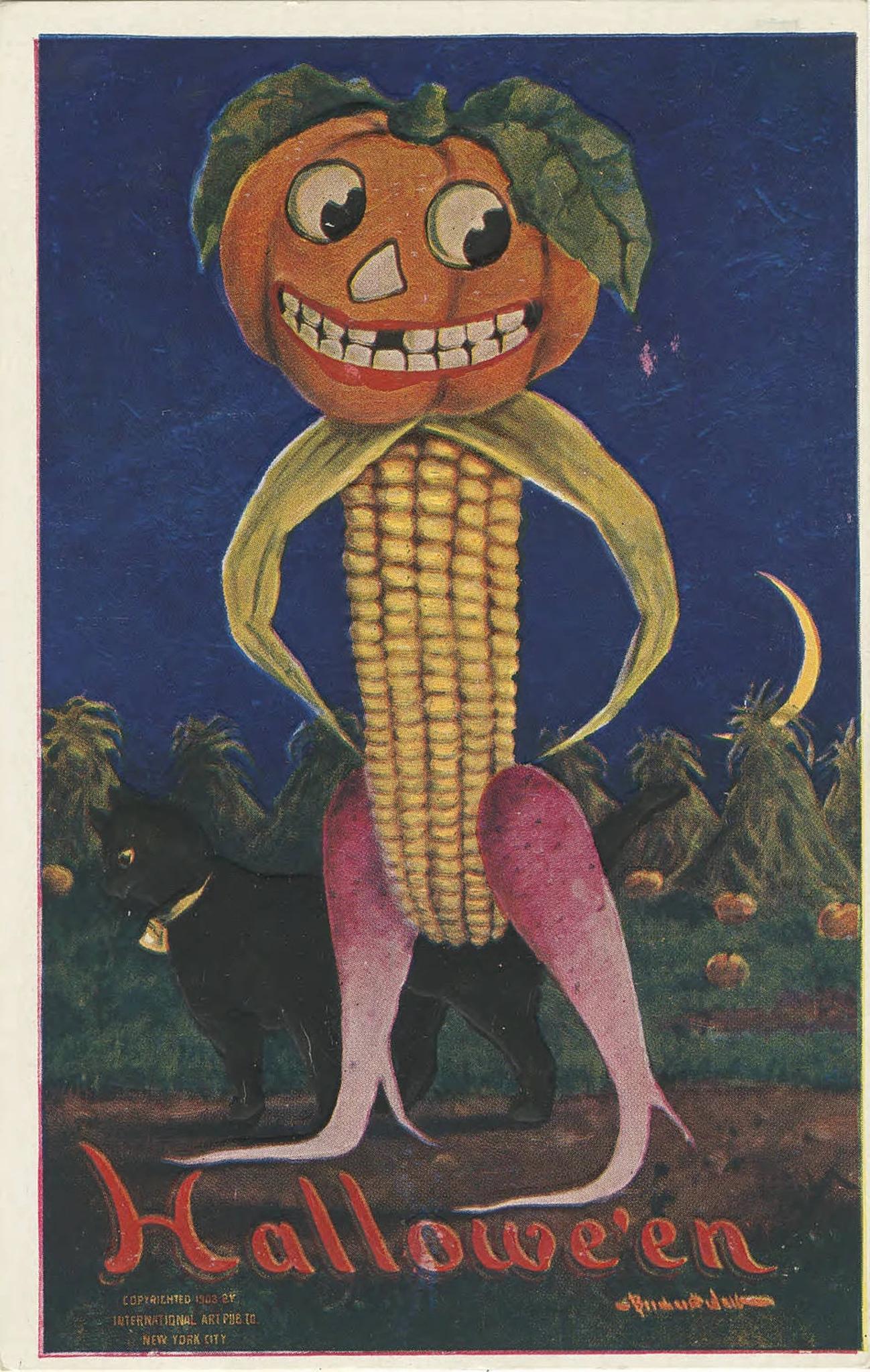
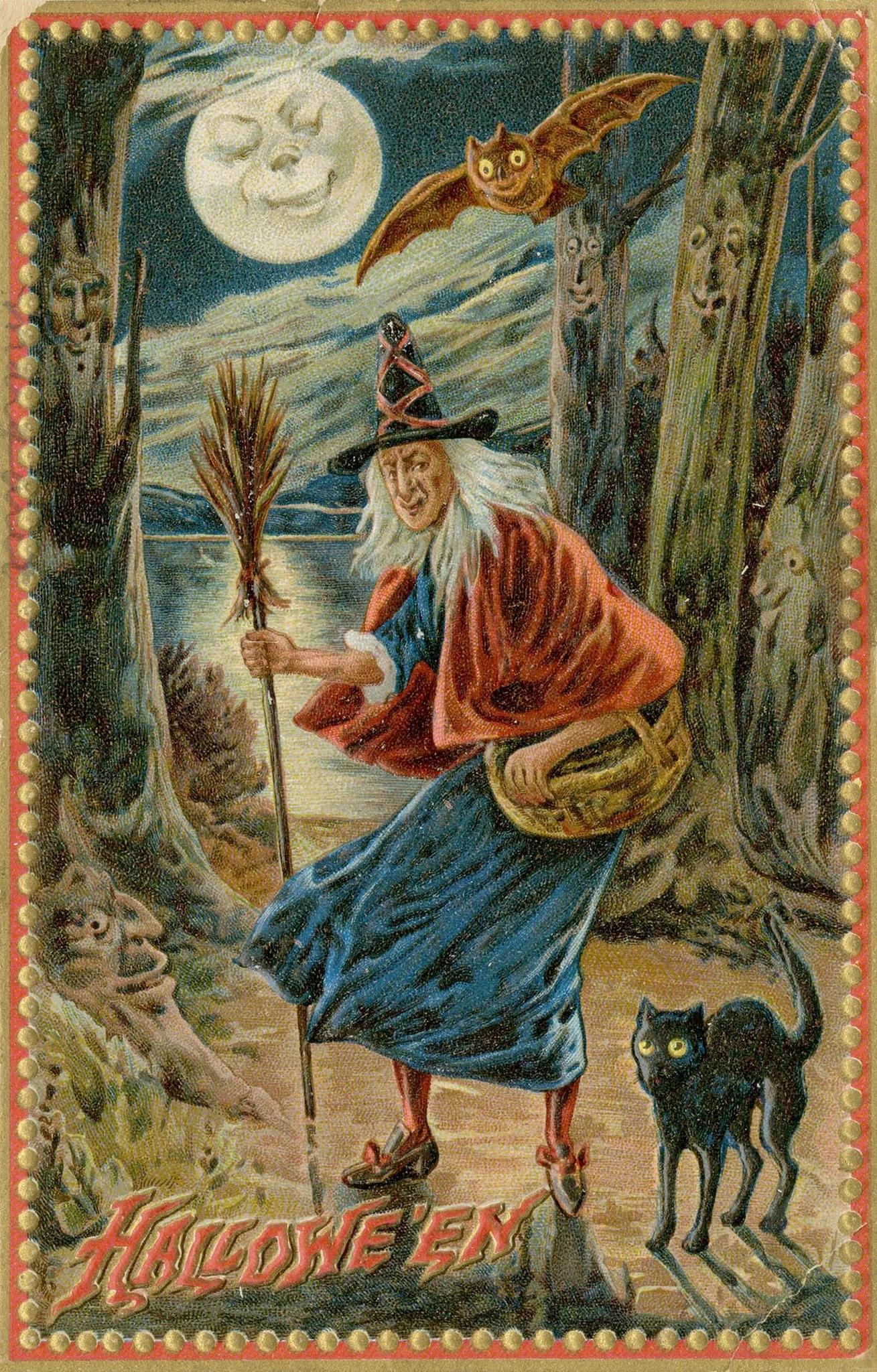
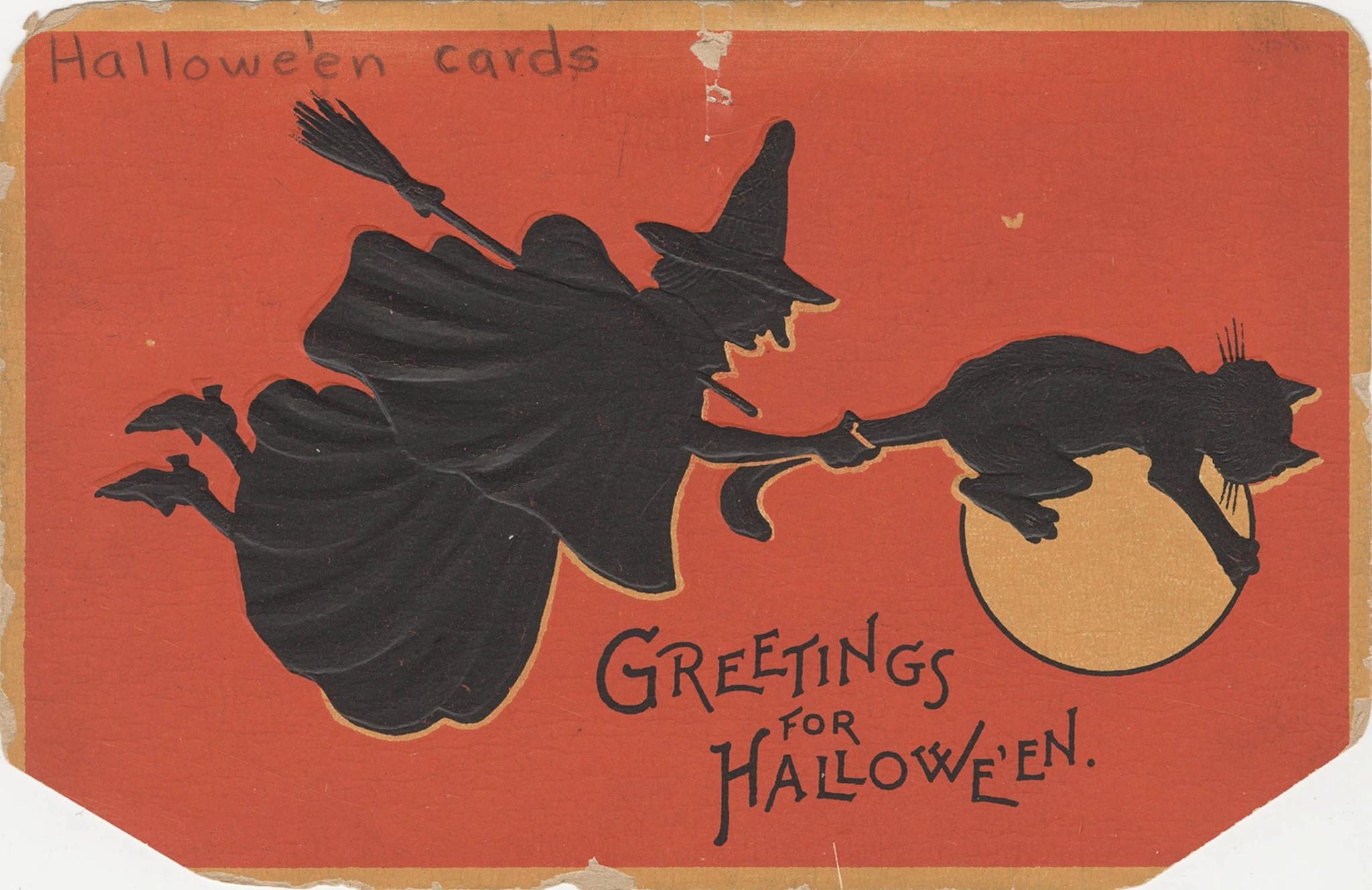
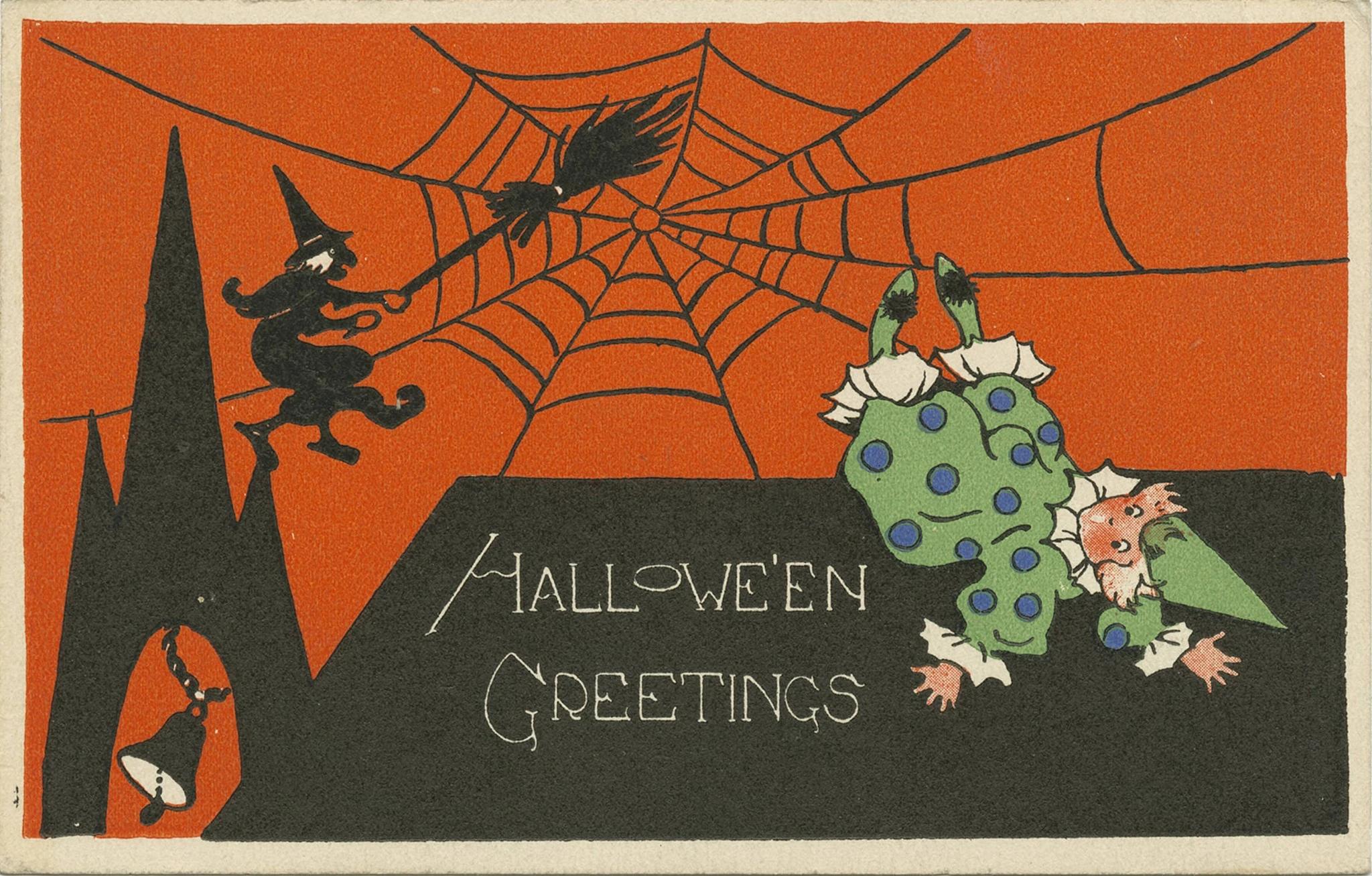
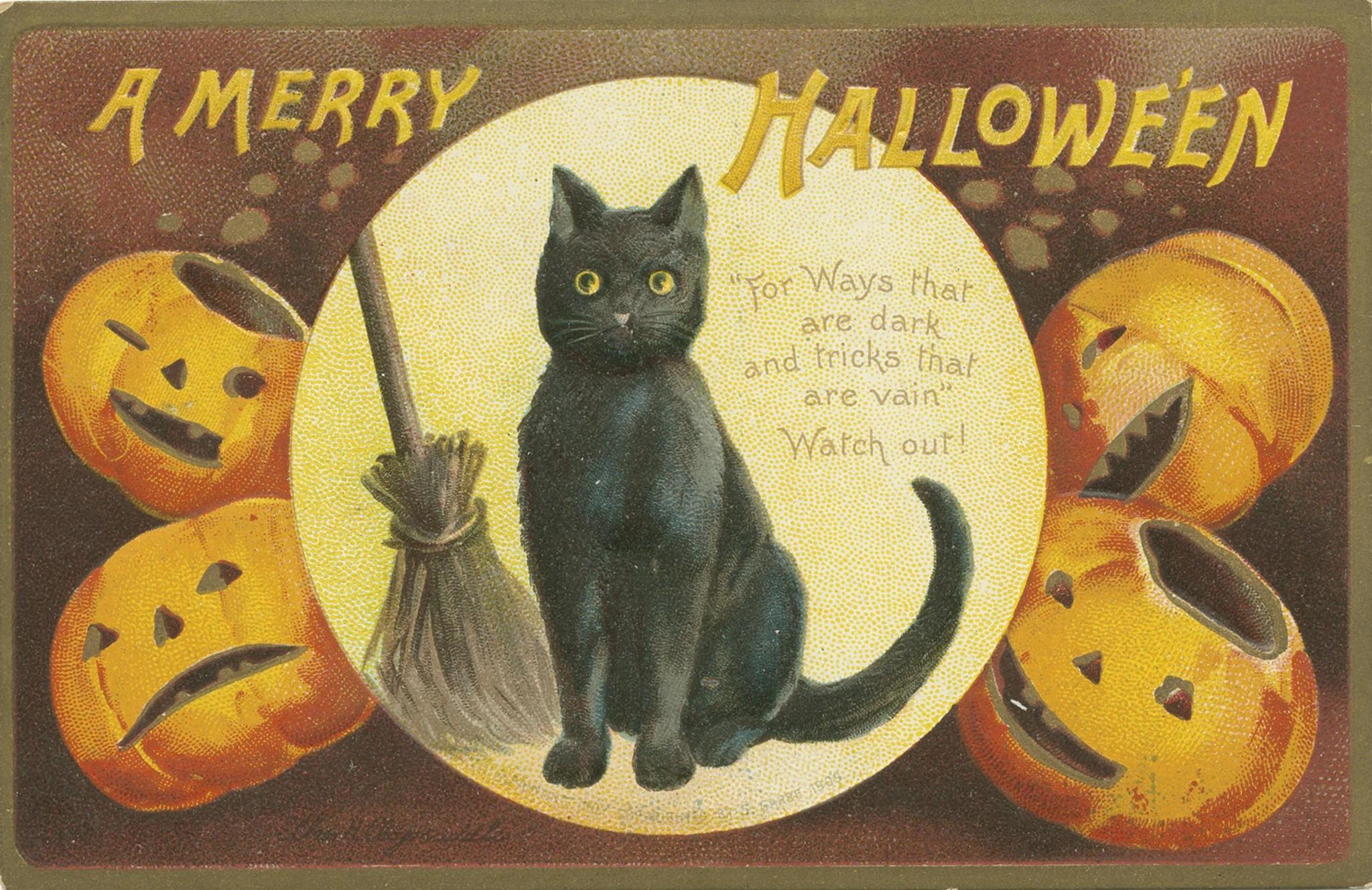
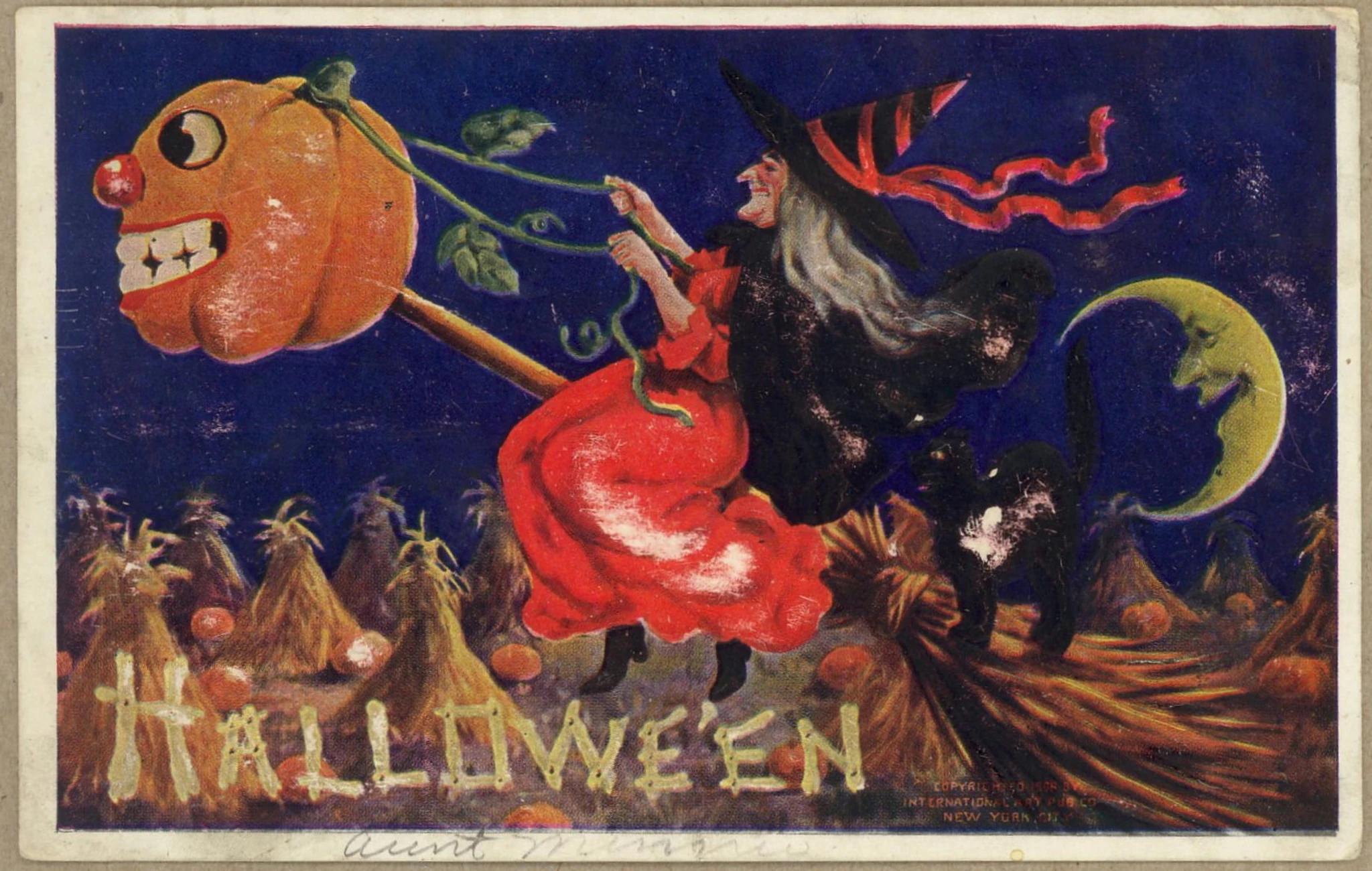
halloween_postcards_0001.jpg. Each caption below uses the same schema.Look over your data before you train. Public sets often have the wrong images mixed in, and anything you leave in shows up in the LoRA. With a small dataset every image counts, so keep the data you have high quality.2. Caption your images
Captions give the model clear context on what’s in each image. Describe what’s pictured: the people, objects, actions and setting. Leave the style out, because that’s what the LoRA learns.Write the captions yourself or have a model write them. Models are good at it, but read what they write before you train. If you write them by hand, say where things sit in the picture, like top left or bottom right.The trigger word
Every caption starts with a trigger word. During training, anything the captions don’t name ends up tied to that word, which here is the old postcard look. After training, you put the trigger word in a prompt to invoke the LoRA.Avoid real words in your trigger.pdhalloween as a trigger word illustrates this well: the model could read “halloween” inside it, so it added Halloween things on its own. At step 0, before any training, it put a “Halloween” badge and a jack-o-lantern into a Christmas card. By step 4,000 it printed PDHALLOWEEN as a heading.
Step 0, pdhalloween added

Step 4,000, no trigger in the prompt
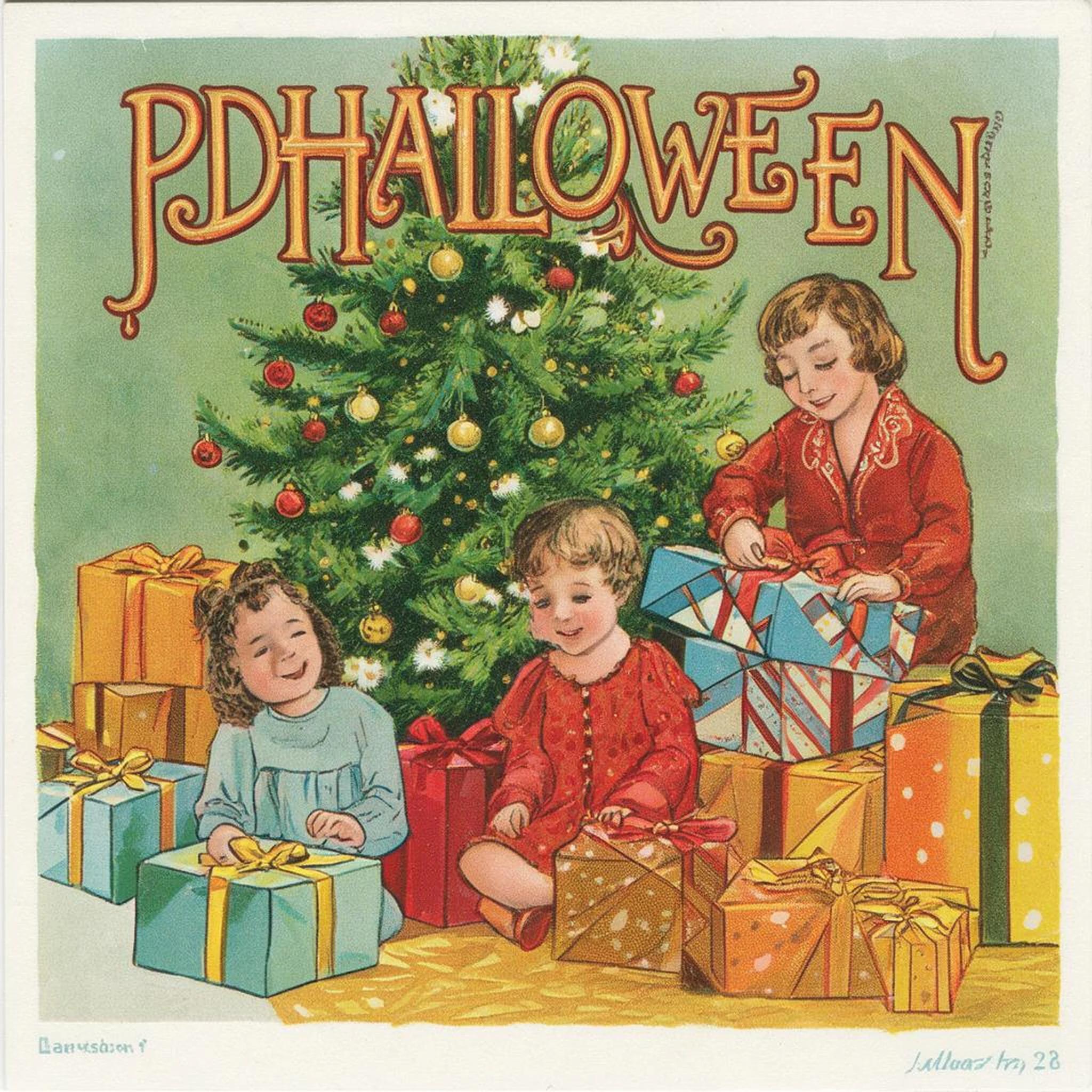
Step 4,000, pdhalloween added
vqx instead. Technically every word means something to a model, but short, consistent gibberish is the usual choice; AI Toolkit’s examples use triggers like p3r5on. Before you train, put your trigger in a prompt on the base model. If the picture changes, pick another word.Writing the captions
Each image gets a text file with the same name that contains its caption. Both go in one folder, and the config points at that folder.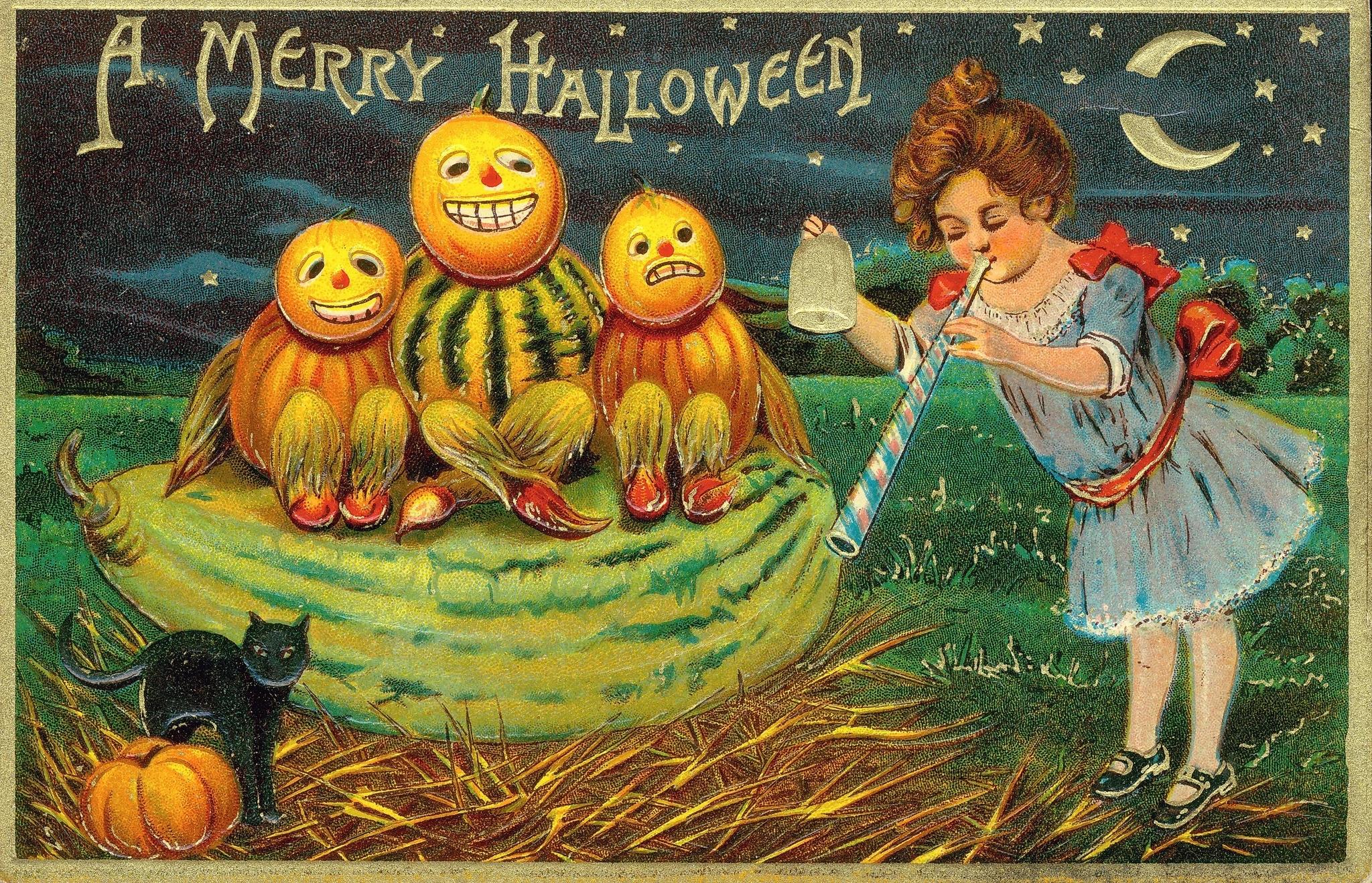
halloween_postcards_0001.txt
folder_path: /path/to/halloweenAI Toolkit can also read one JSON file that maps each image path to its caption, set as folder_path. This guide uses .txt files, but one JSON file is probably easier to manage, and easier for a model to write if you have one help with captions.The captions don’t use words that describe the style, like “vintage” or “postcard”. Instead they describe the objects in the image, and the trigger word absorbs the look. Here’s how that works:Fig 1. Switch between the three captions to see which parts of the card the trigger word absorbs.If a card has words printed on it, put them in the caption.3. Set up the config
Most of AI Toolkit’s defaults work great. Here are the settings you’ll change, and why.Rank: how big the LoRA is
Rank sets the size of the LoRA. Think of Klein as a textbook and your LoRA as sticky notes on its pages. Training a LoRA leaves the textbook alone and only writes the notes. Rank is how big the note on each page is: bigger notes can hold more changes, and make a bigger file.Use rank 32. It’s only 161 MB and about 80 million weights, really small next to Klein’s 5.6 billion.Fig 2. Pick a rank to see how the file size changes, and set strength to 0 to see Klein without the LoRA.Learning rate and schedule
The learning rate is how much the LoRA changes on each training step. Keep it at1e-4, a standard value. The schedule changes the learning rate over the course of the run, and Fig 3 compares five of them. The Klein recipe uses constant_with_warmup, a short warmup and then a constant rate, and that was one of our favorites. cosine was the other.Fig 3. Click each of the five lr_scheduler settings to see its learning rate at each step and how much the late checkpoints still change.Timesteps: how much noise to train on
Each training step adds noise to an image and asks the model to take it out.timestep_type decides how much noise. AI Toolkit’s default, sigmoid, mostly practices on medium noise. Klein’s sampler spends about half its steps at very high noise, and timestep_type: shift trains there about as often.Use timestep_type: shift. It has the biggest effect of any setting here: the witch prompt looked like a printed card by step 300. If your samples barely change after a few hundred steps, check this setting first.Steps: how long to train
Train the full 4,000 steps from the Klein recipe, and save every 100 so you can compare. Our favorites were at 2,000, but some runs looked good at 4,000 too, so judge your own. Between 2,000 and 4,000 the changes get smaller.Dataset size matters. This one has 65 images. With a much bigger set, each image comes up less often in the same number of steps, so you may want to train longer.Everything else
The rest are AI Toolkit defaults or settings that keep memory down: the AdamW optimizer, batch size 1, 1024 px, bf16, gradient checkpointing and latents cached to disk. They’re all in the config below, which is also in the repo with theconstant_with_warmup version next to it.The full config (cosine), with placeholder paths
The full config (cosine), with placeholder paths
halloween-lora.yaml
4. Train and watch the samples
Save the config ashalloween-lora.yaml, then run it from the ai-toolkit folder with the venv active:steps: 50, save_every: 25, sample_every: 25) to make sure everything works as expected. It shouldn’t take longer than 15 to 20 minutes.Test questions
The preview prompts in the config are your test questions. Withsample_every matching save_every, every checkpoint comes with an image for each one (using the same seed), so you can compare checkpoints fairly. Ours covered:- a control without the trigger (the cat prompt without
vqx) - scenes close to the cards (black cat, witch)
- a subject the cards never show (a robot)
- the Christmas postcard with and without
vqx, at two seeds, to catch the trigger leaking
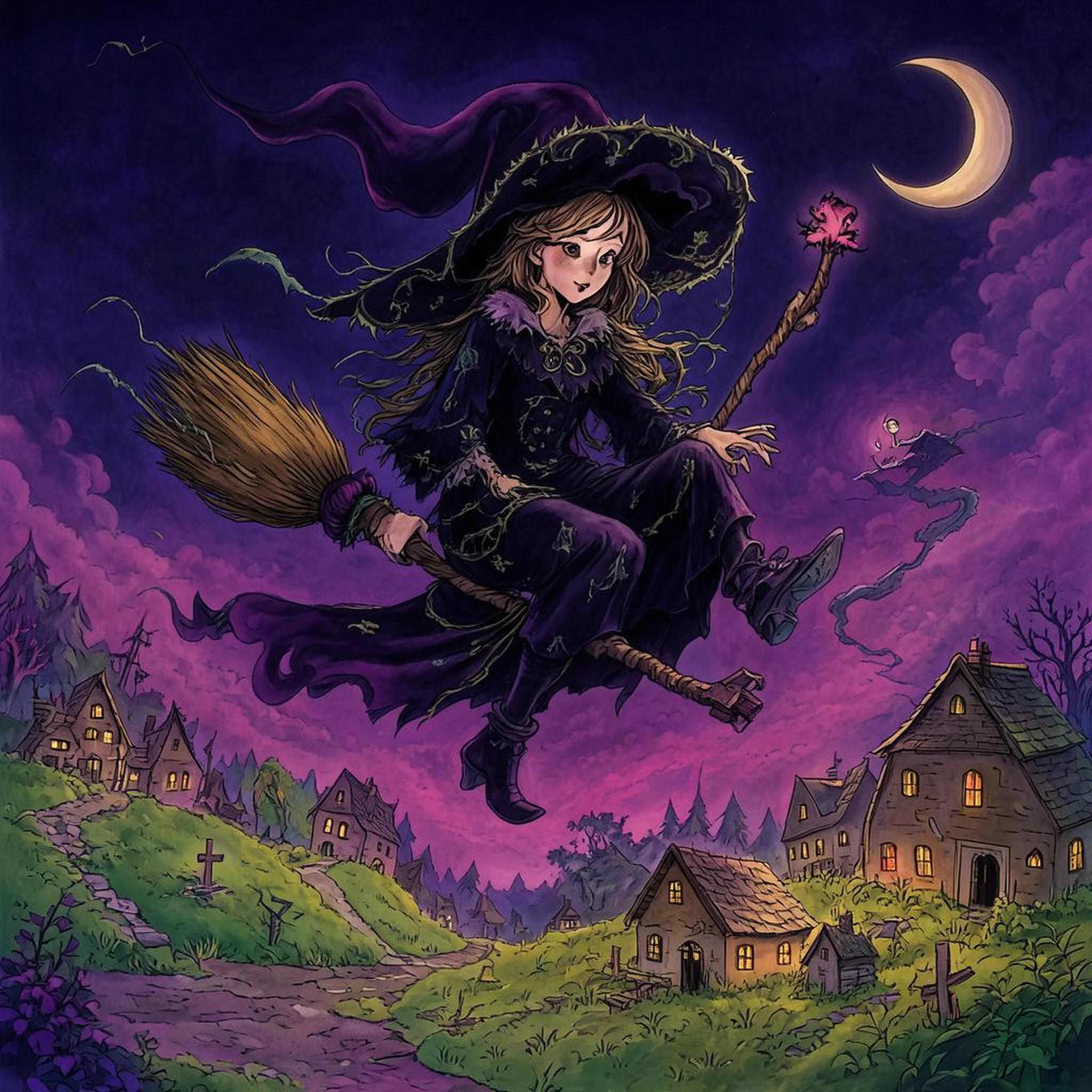
Step 0
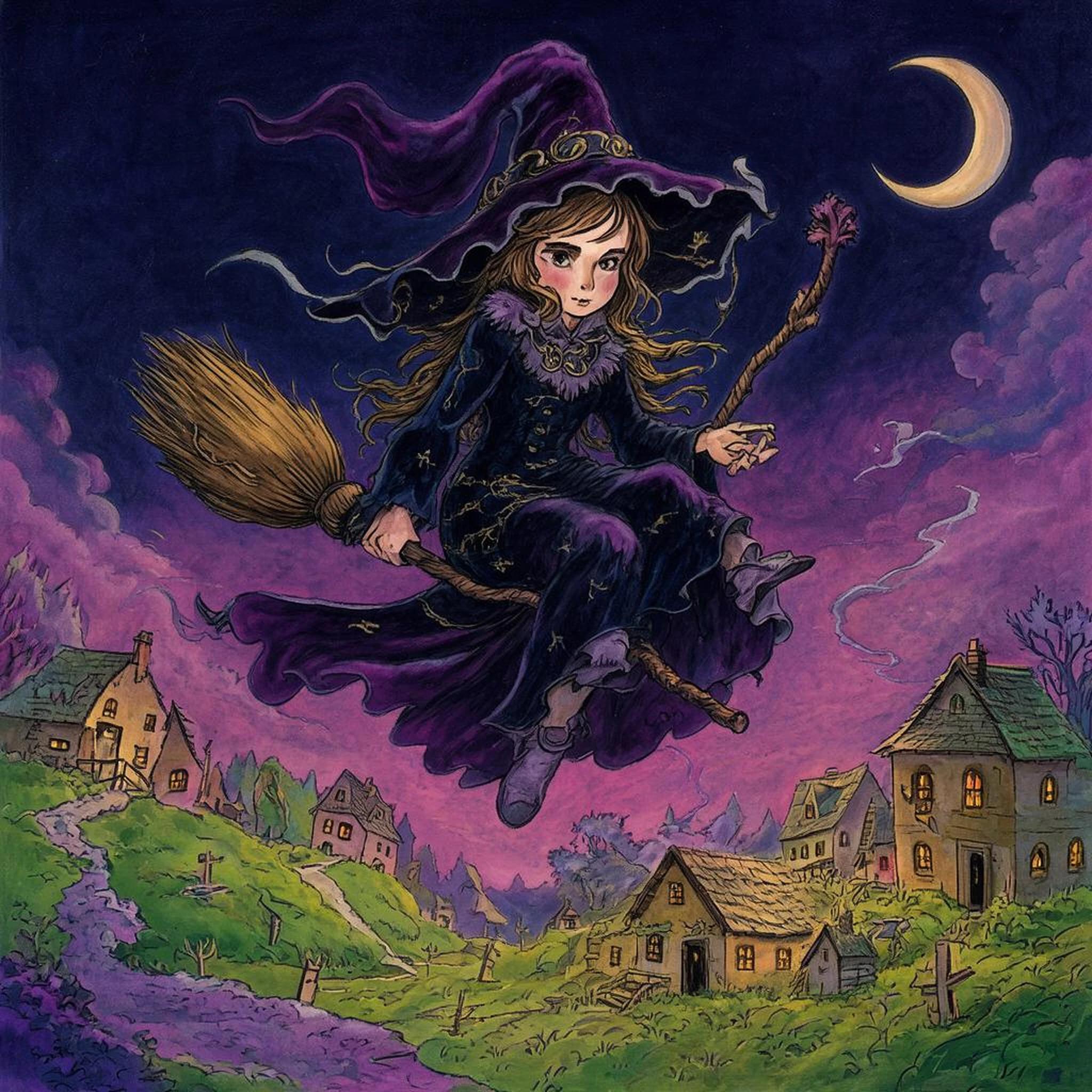
Step 100
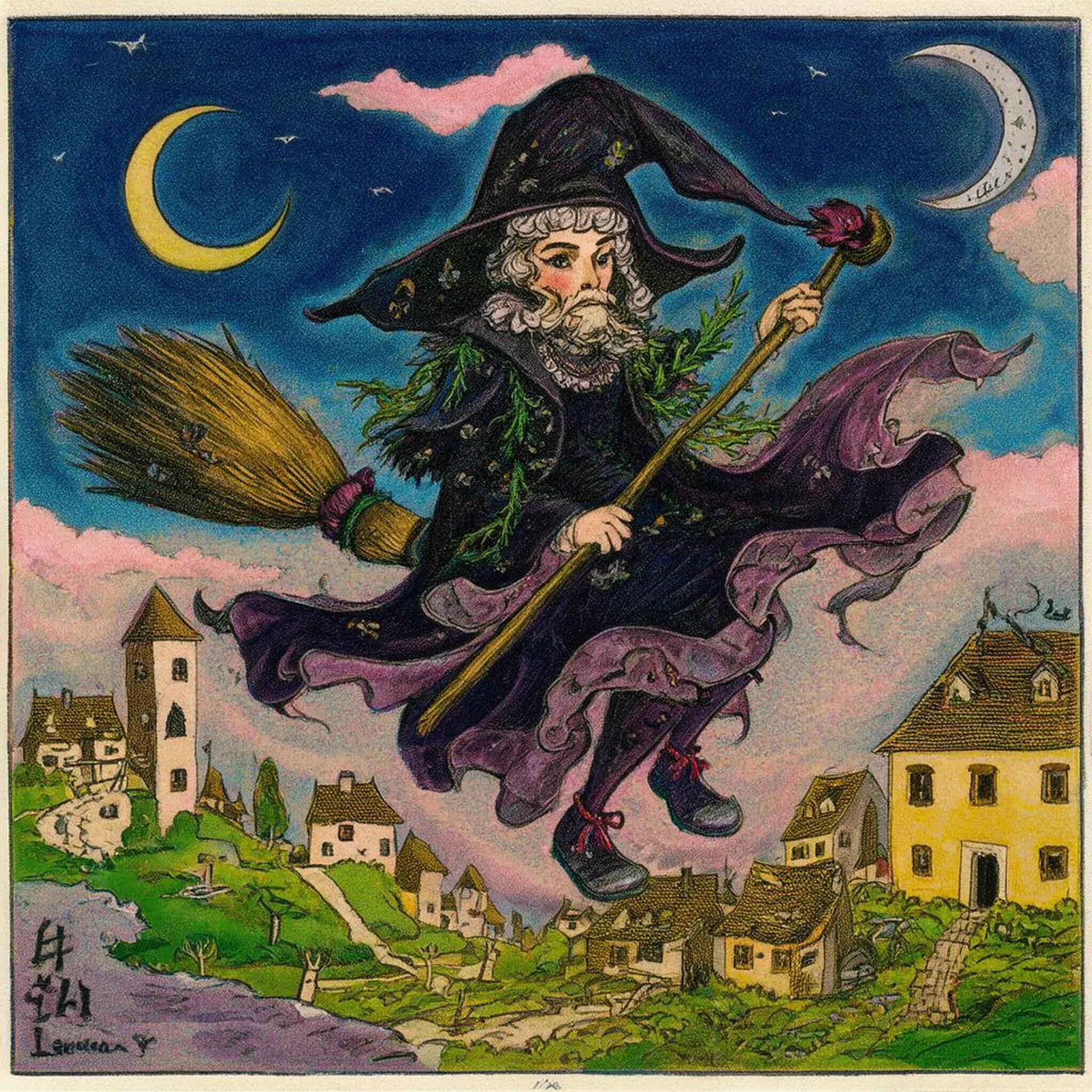
Step 300
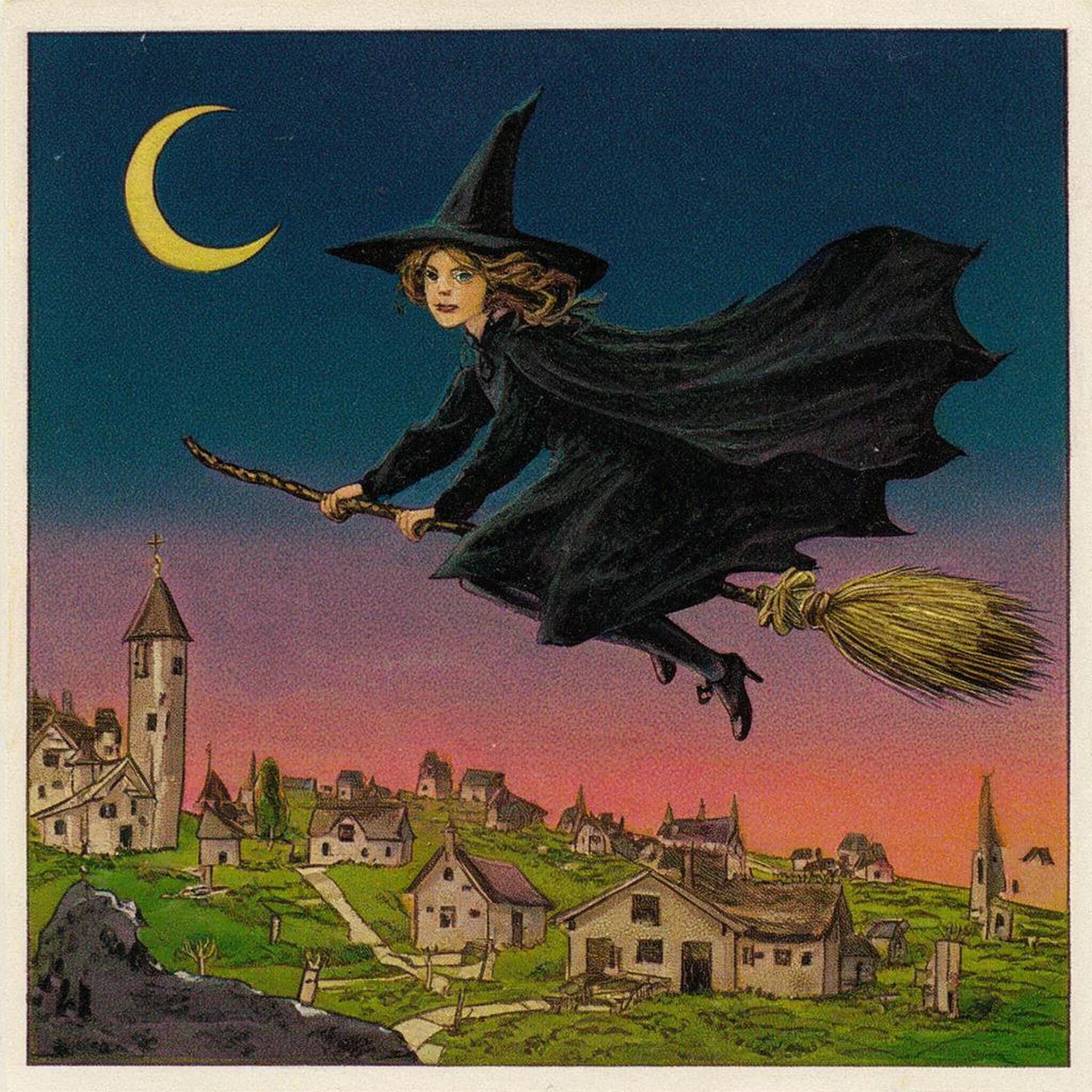
Step 1,000
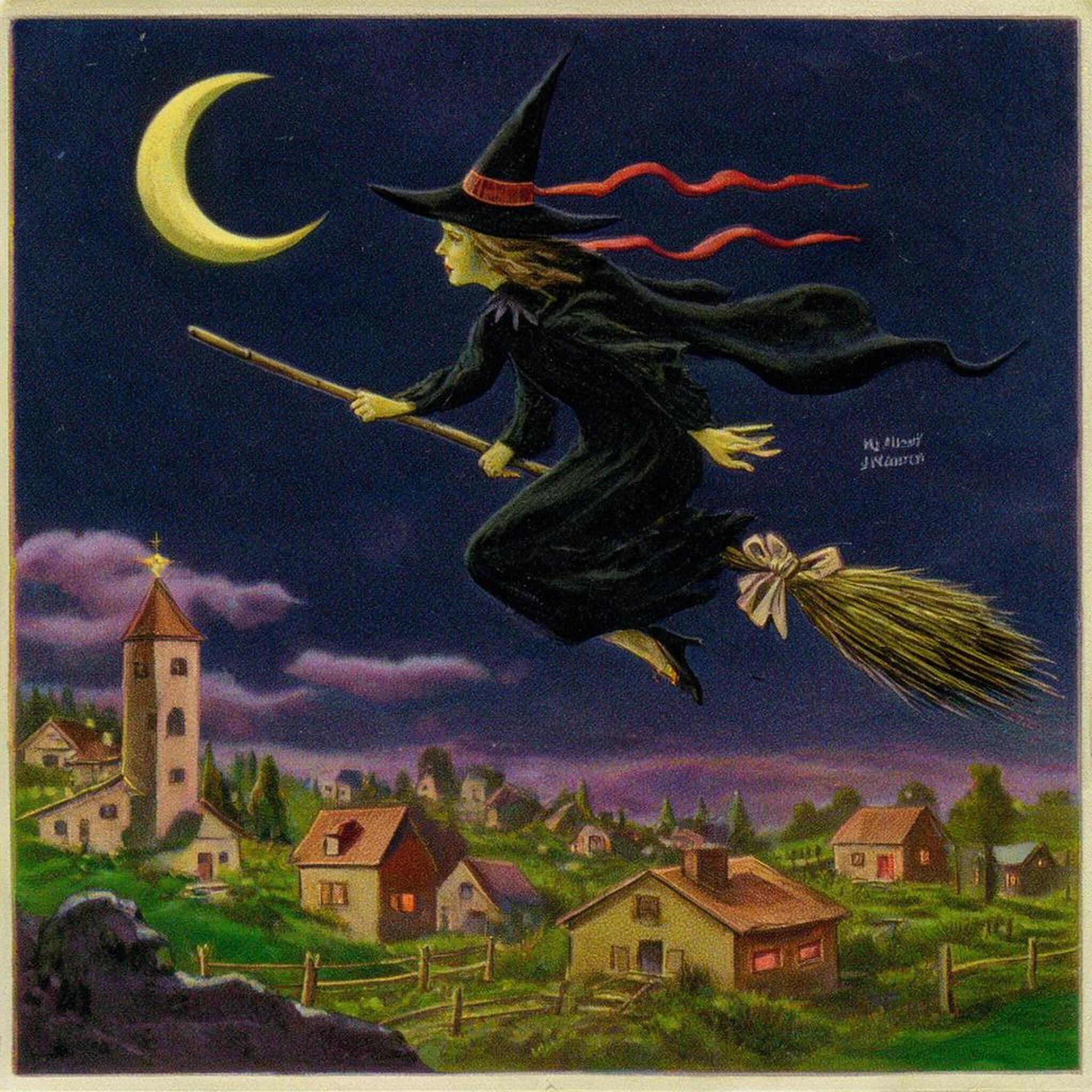
Step 2,000
- Step 0 is the base model: a glossy purple witch.
- Step 100 barely changes.
- Step 300 already reads as a printed card, with a border.
- Steps 1,000 and 2,000 settle into flat printed color.
/path/to/output/halloween-lora/: a checkpoint every 100 steps, and the preview images in samples/. Open them up and judge them by eye.5. Pick a checkpoint
Training doesn’t head toward one right answer. Each checkpoint has learned a bit more from your images, and past some point it learns them too well: it overfits, copying details from your training cards instead of just the style. Saving checkpoints along the way lets you see what each one generates and pick the one you like.Use these test cards to choose both your learning-rate schedule and how far into the run to go. The runs for this guide compare five schedules (constant_with_warmup, constant, linear, linear decaying to zero, and cosine), each at 2,000 and 4,000 steps, plus the base model, with the same prompts and seeds. Our favorites were constant_with_warmup and cosine, both at 2,000 steps.cosine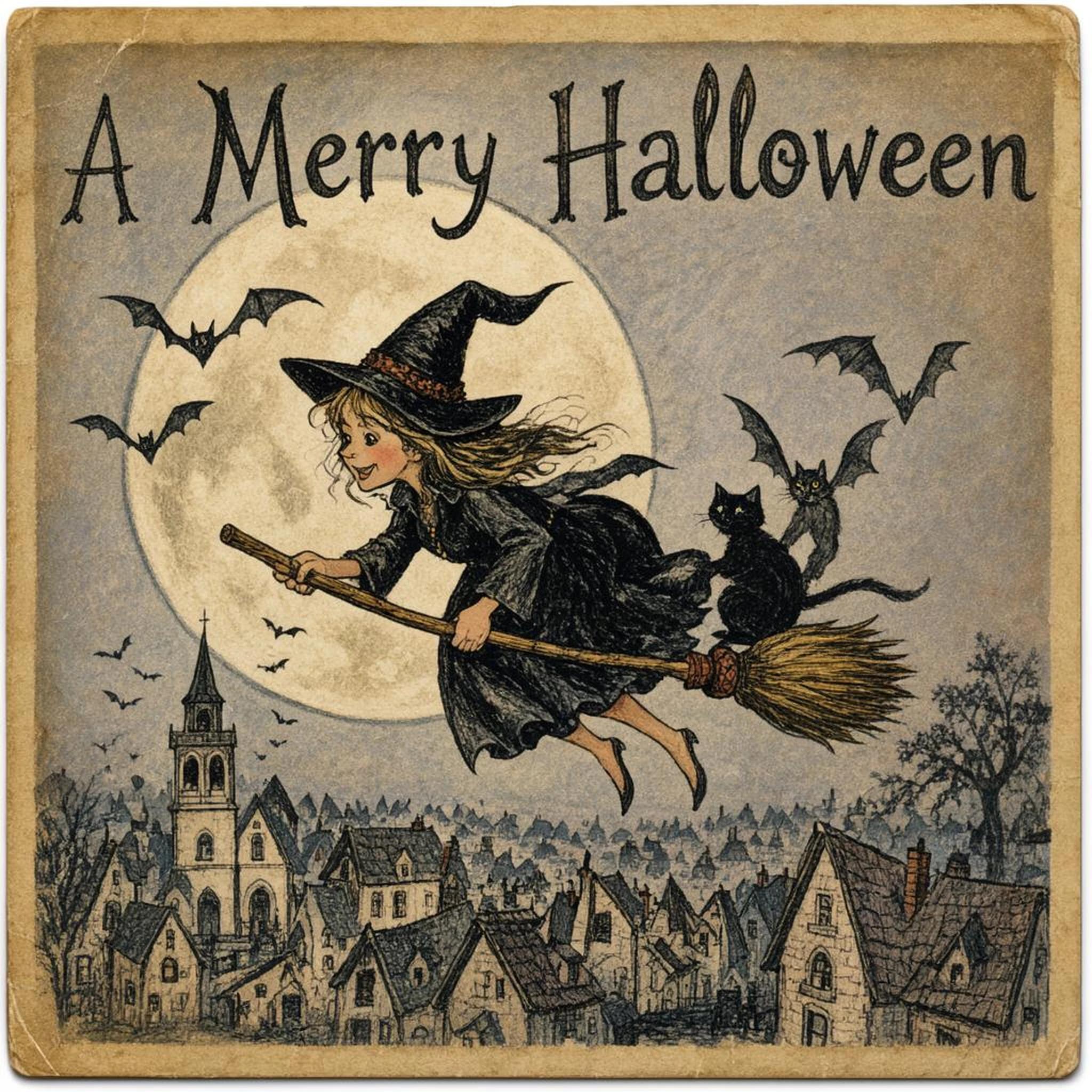
Step 0 (base)
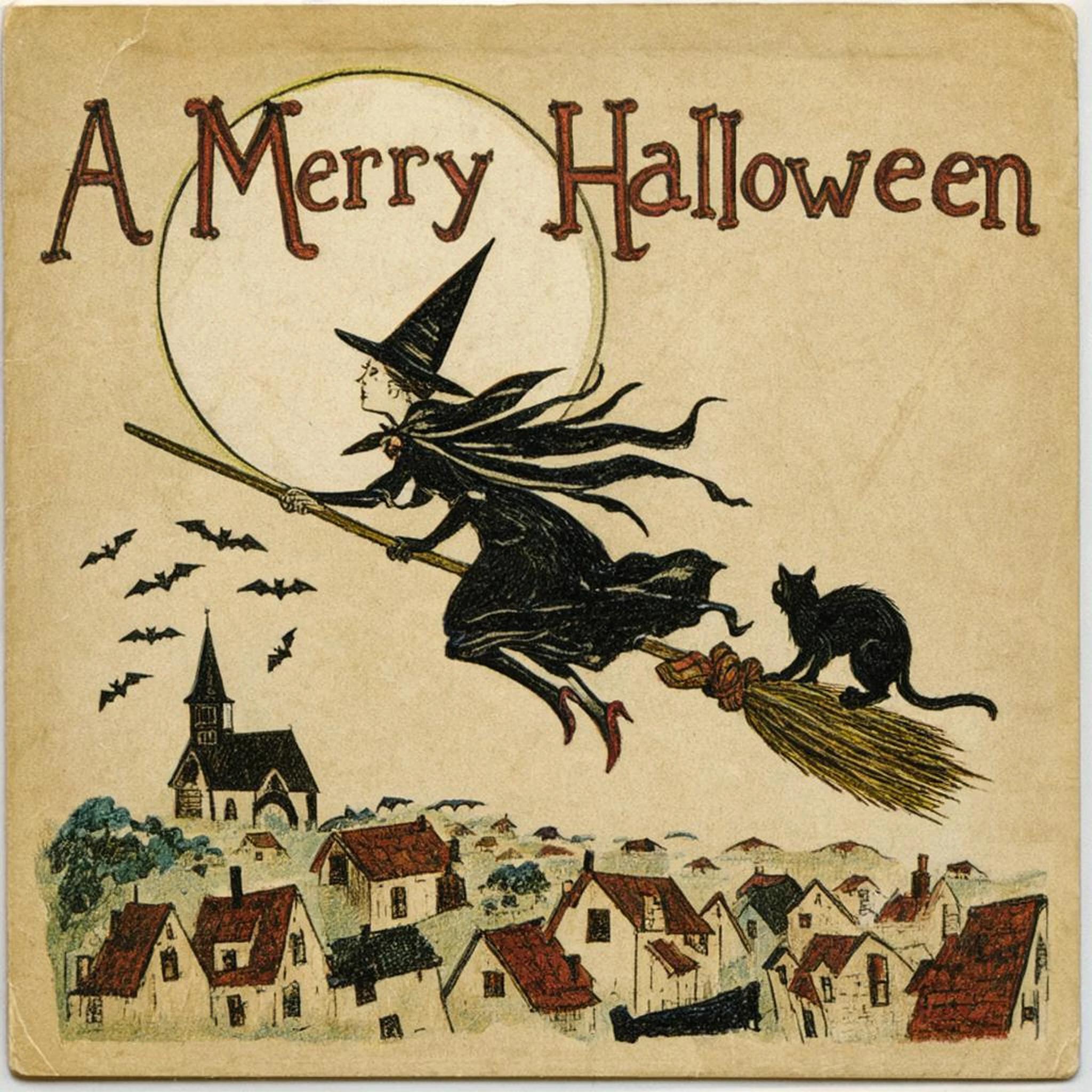
Step 2,000
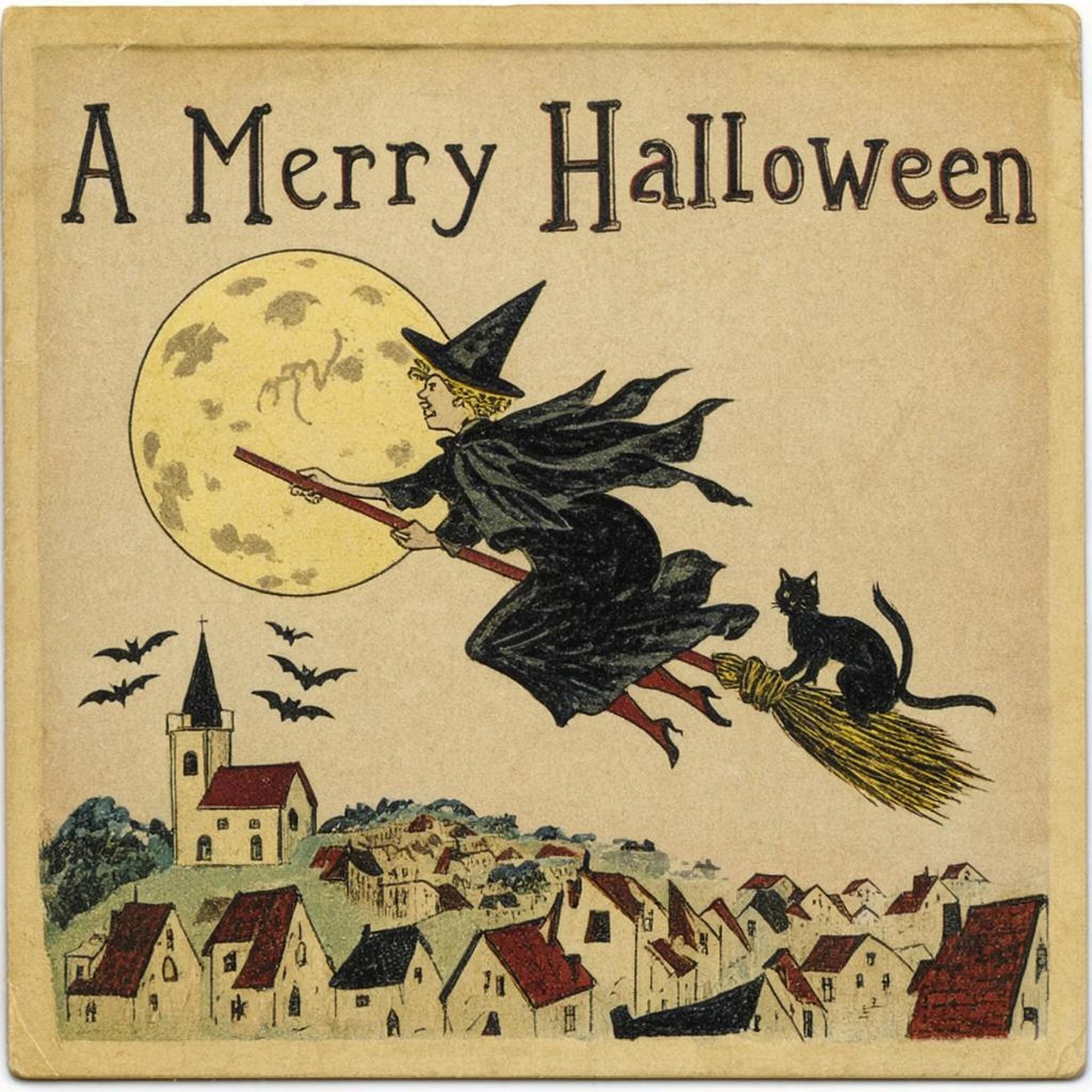
Step 4,000
Step 0 (base)
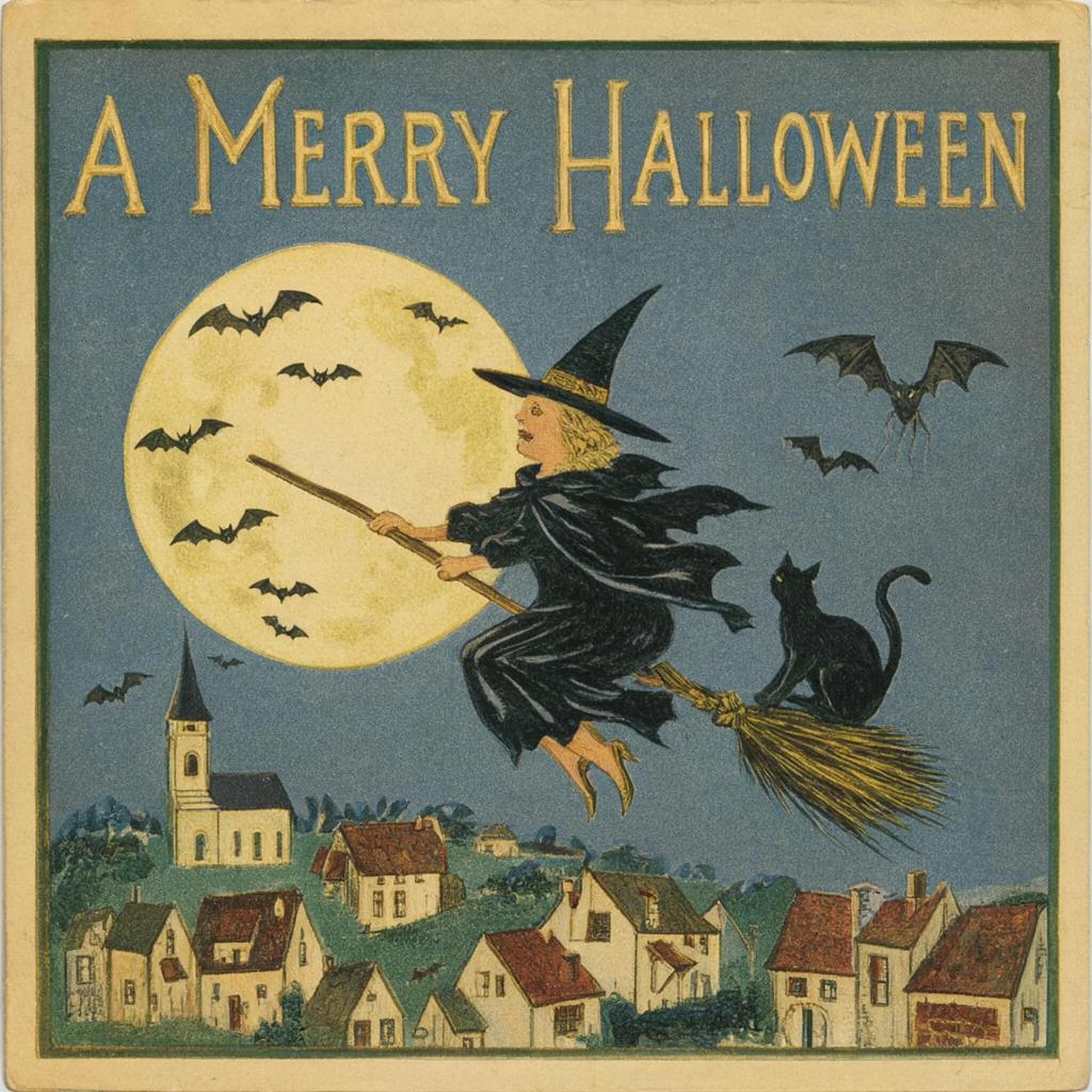
Step 2,000
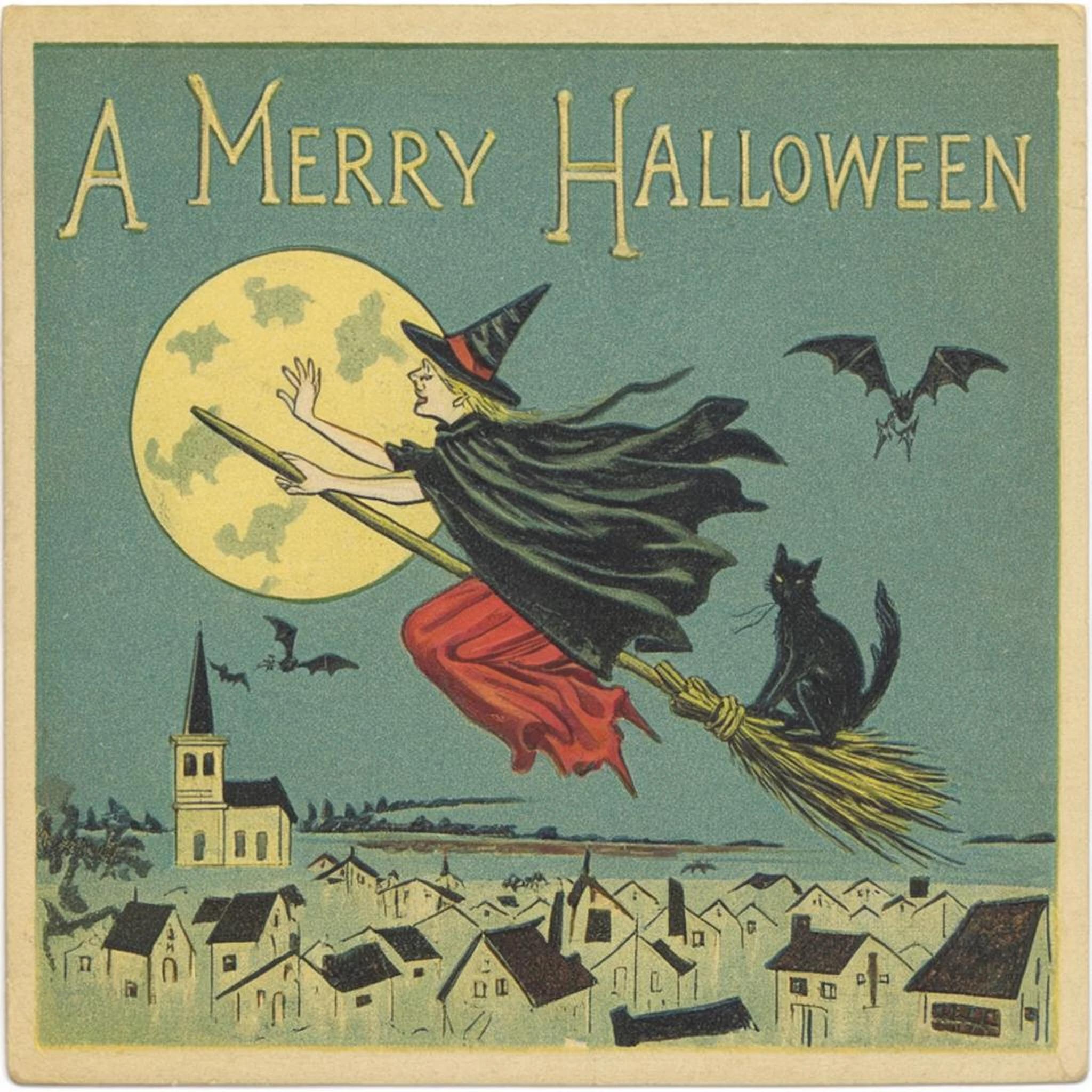
Step 4,000
constant_with_warmup run put the witch in a red skirt on a teal sky, close to cards 0033 and 0045 in the dataset, a sign it may be overfitting.A
cosine schedule depends on how long the whole run is. The cosine checkpoint in this guide came from step 2,000 of a 4,000-step run, where the learning rate was still at half its peak. If the run had been set to end at 2,000, the rate would have dropped to zero by then, and the result would be different.halloween-lora_000002000.safetensors and the final one is halloween-lora.safetensors.6. Make cards with your LoRA
All that’s left is to load your checkpoint on top of FLUX 3 Image Klein, run your prompt through the prompt upsampler as you would for any Klein prompt, and put the trigger word at the start of the caption it returns. The upsampler has never seenvqx, so give it your request without the trigger and add vqx, afterward. Asking it for “a flat, straight-on scan of an old Halloween greeting card” keeps it from photographing the card on a table. This script does all three.Want to skip training? Download the two checkpoints from this guide (klein-vqx-shift4k-cosine_000002000.safetensors and klein-vqx-shift4k-warmup_000002000.safetensors), or make your card on Hugging Face.Because the look is trained into the trigger word, the prompt doesn’t need style words like “vintage” or “postcard”. Still describe what you want on the card.Every card here uses strength 1. You can change the strength to set how strongly the LoRA shows, so experiment with it.